After signing in at panel.erphome.pl you land in the owner panel. The panel consists of a sidebar with navigation and a main content area. Here is what you'll find in each section.
Panel structure
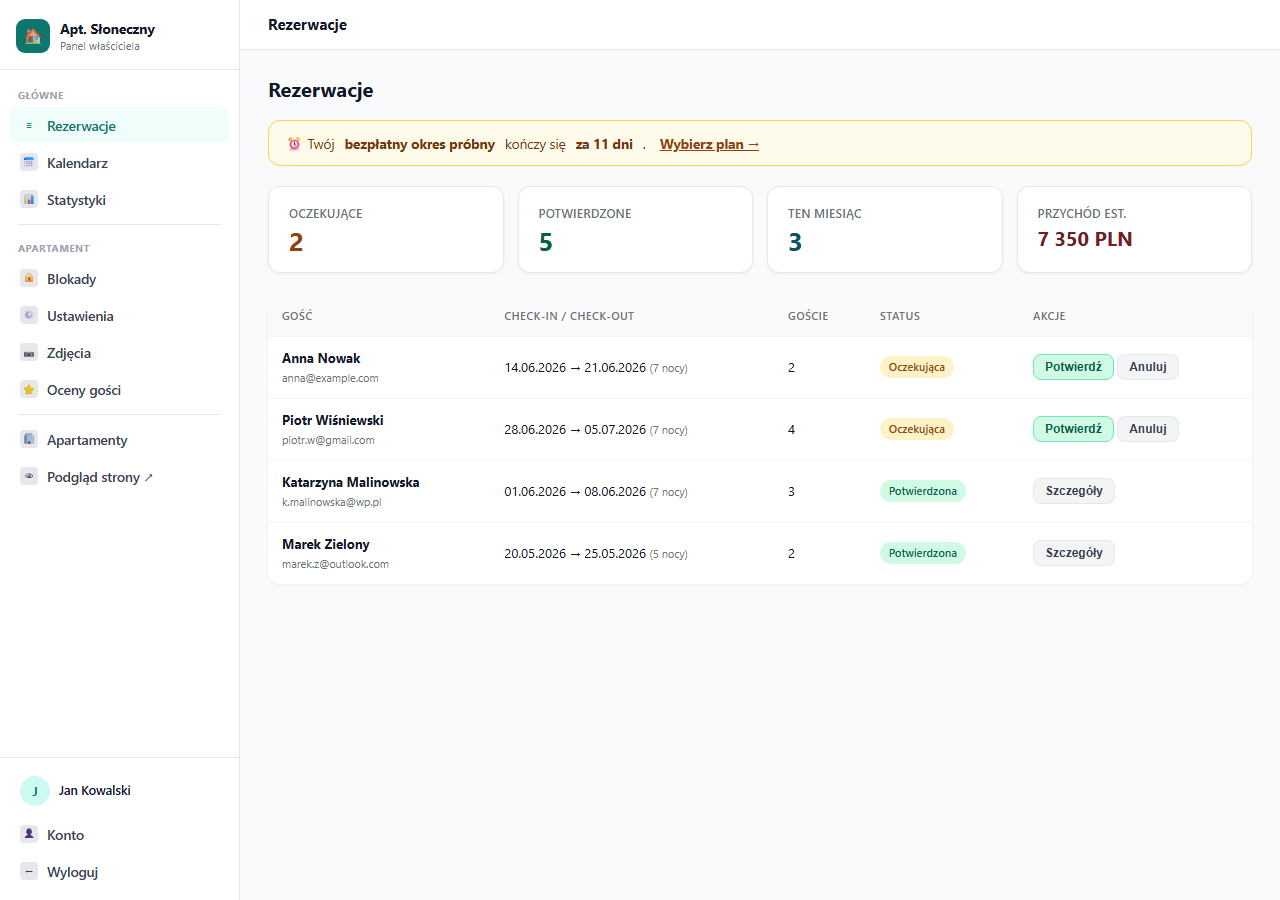
The left column holds a fixed sidebar with the apartment logo, the list of pages and your account details. The right part shows the content of the currently selected section. On mobile devices the sidebar collapses — open it with the menu icon in the top-left corner.
Navigation — what you'll find where
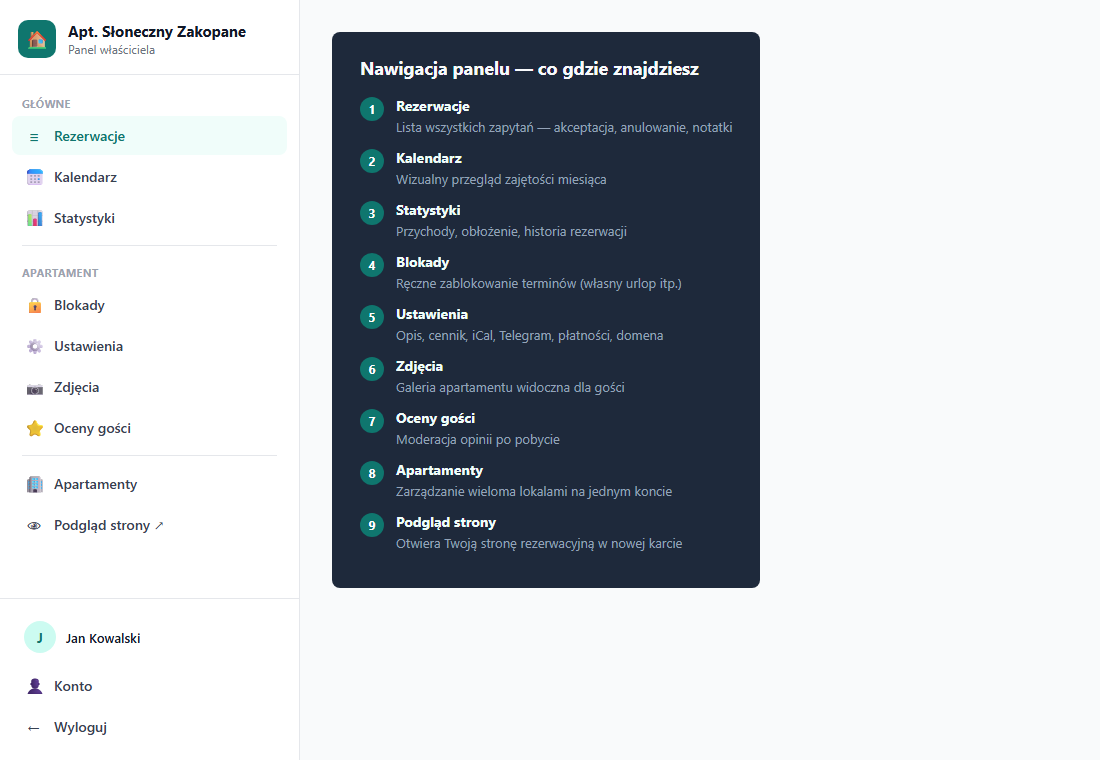
Bookings
The panel's home page. It shows a list of all booking requests together with statistics (pending, confirmed, estimated revenue). Here you accept or reject bookings, edit dates and guest counts, add private notes visible only to you, and in each booking's details you track payments and the deposit. Details: How the booking process works.
Calendar
A visual view of the month's occupancy — colored blocks show confirmed and pending bookings as well as manual blocks. Handy for quickly checking free dates without going through the list.
Statistics
KPI indicators (total bookings, nights, average stay, estimated revenue) and a monthly table for the last 12 months with revenue and occupancy percentage. Details: Statistics — revenue, occupancy and booking history.
Blocks
Manual blocking of dates — e.g. for your own stay, renovation or transferring a booking from another platform. Blocked dates are unavailable in the booking form and synced to iCal. Dates can be added individually or as a range. Details: Manually blocking dates.
Settings
The richest section of the panel, split into tabs:
- 🏠 Apartment — title, description, language versions (10 languages), address with autocomplete (OpenStreetMap), amenities, house rules, nearby attractions, FAQ, hours and check-in instructions, personalization (accent color, logo emoji) and availability constraints: gap between bookings, booking lead time, allowed check-in days
- 💰 Pricing — base price, seasonal prices, day-of-week prices, extra-guest surcharge, additional fees, promo codes, discounts, deposit and minimum stay
- 📅 Calendars — connecting iCal calendars from Booking.com, Airbnb and other OTAs, exporting your calendar and the booking widget code to embed on your own site → How iCal works
- 🔔 Notifications — notification email, Telegram and Google Calendar integration → How to connect to Telegram · Google Calendar
- 💳 Payments — payment gateway configuration → How online payments work
You configure a custom domain instead of
name.erphome.plnot here, but in My account → Custom domain.
Photos
Upload and gallery management. Photos display in an automatic order, and the first one acts as the thumbnail and the main image on the page. You can add a caption to each photo, visible in the lightbox. Supported formats: JPG, PNG, WebP. Details: Photos and gallery.
Guest reviews
Reviews left by guests after their stay appear here for moderation. You can approve or reject each review before it is published on the booking page. Details: How reviews work, Moderating reviews.
Apartments
Visible when you have more than one apartment on your account. It lets you manage all your properties: add new ones, change visibility and delete them. More in the article How to add another apartment.
Users
Visible only to the account owner. Here you add additional people (reception, cleaning, accounting) with access limited to selected apartments and features — without sharing your own password. Details: Panel users — access for your team.
Switch account
Appears only when your login has access to the panels of more than one owner. It lets you switch between accounts without signing out. More: Panel users.
Preview page
The link opens your booking page in a new browser tab — exactly as guests see it. Handy for verifying changes after editing the description, photos or pricing.
Apartment selector
If you have several apartments, a dropdown appears at the top of the sidebar that lets you switch context between properties. The Bookings, Calendar, Statistics, Blocks, Settings and Photos sections always work in the context of the currently selected apartment.
Account and subscription
At the bottom of the sidebar you'll find your name and an Account link. In the Account section you can change your password, email address, company details, view payment history and manage your subscription (renewal, plan change).
If a trial is in progress or your subscription is suspended/expired, a yellow banner with information and a renewal link appears at the top of the panel.
If you sign in as a panel user with access to several owners' accounts, a Switch account link appears above Account — you switch between panels without signing out. The sidebar then shows only the sections you have permission for.
Related articles: How to create an account and complete onboarding · How to add another apartment · Completing your apartment profile · Panel users — access for your team · Subscription plans · How to check and share your page