Potwierdzenie rezerwacji to Twoja akceptacja zapytania gościa. Anulowanie — jej odwołanie, niezależnie od tego czy inicjuje je gość czy Ty. Oba działania wysyłają automatyczny e-mail do gościa.
Gdzie to zrobić
Z listy rezerwacji — przy każdej oczekującej rezerwacji widoczne są przyciski „Potwierdź" i „Anuluj" bezpośrednio w tabeli.
Ze strony szczegółów — kliknij „Szczegóły" przy rezerwacji, a w prawej kolumnie zobaczysz pełne przyciski akcji.
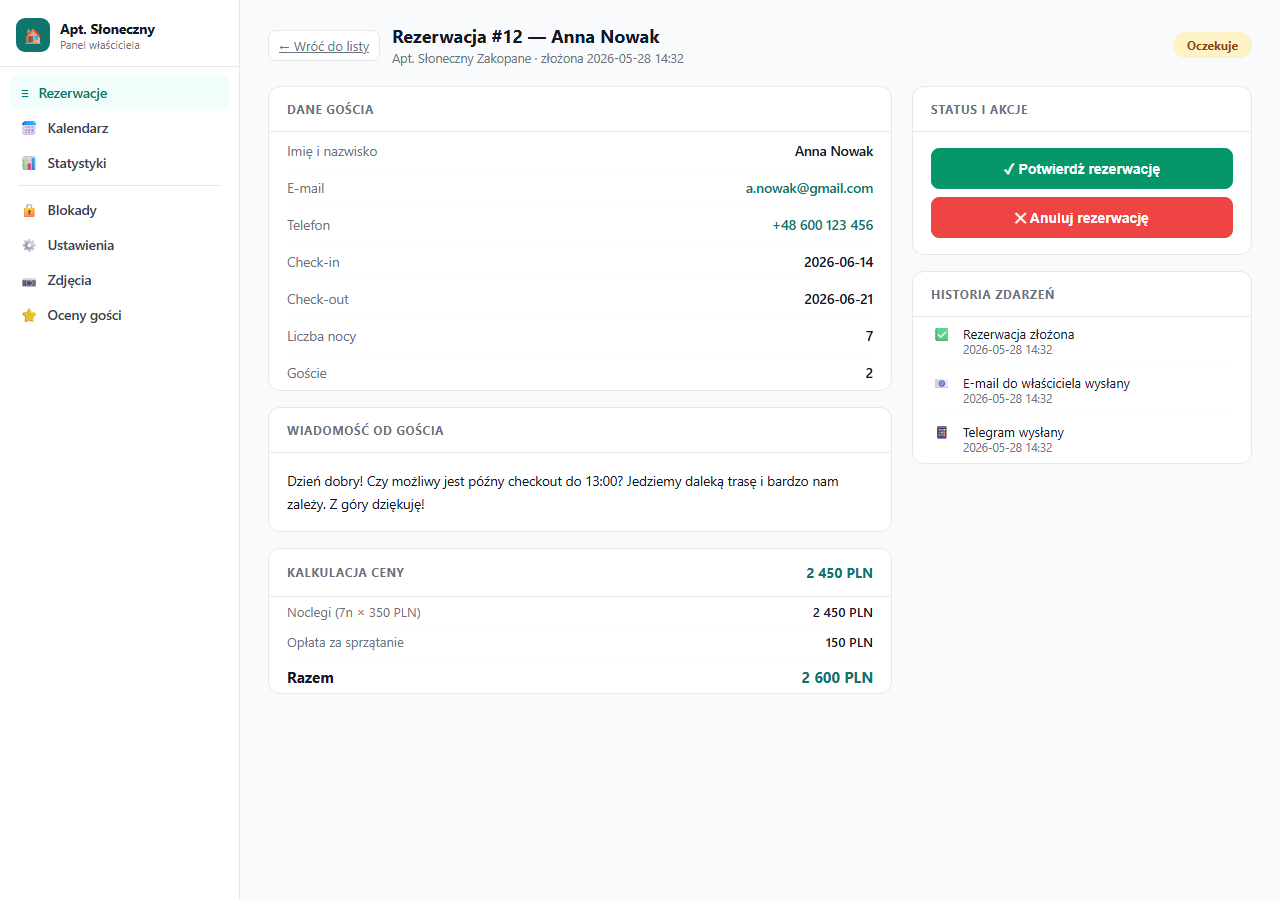
Potwierdzenie rezerwacji
Kliknij „✓ Potwierdź rezerwację". Natychmiast:
- Status zmienia się na Potwierdzona (zielona etykieta).
- Gość dostaje e-mail z potwierdzeniem — zawiera daty, liczbę gości, kwotę, dane apartamentu i instrukcję zameldowania (jeśli ustawiłeś ją w Ustawienia → Apartament).
- W historii zdarzeń pojawia się wpis o zmianie statusu i wysłanym e-mailu.
Potwierdzenie nie blokuje możliwości późniejszego anulowania — możesz anulować potwierdzoną rezerwację w każdej chwili.
Anulowanie rezerwacji
Kliknij „✕ Anuluj rezerwację" i potwierdź w oknie dialogowym. Natychmiast:
- Status zmienia się na Anulowana (czerwona etykieta).
- Gość dostaje e-mail z informacją o anulowaniu.
- Zablokowane daty wracają do puli dostępnych — gość może zarezerwować ten termin ponownie.
Anulowanie nie uruchamia automatycznego zwrotu pieniędzy. Jeśli pobierasz kaucję, jej status (wpłacona → zwrócona → zatrzymana) prowadzisz osobno na stronie szczegółów rezerwacji — patrz Kaucja (depozyt zwrotny) i Płatności w rezerwacji. Politykę zwrotu pozostałych środków ustalasz samodzielnie zgodnie z Twoim regulaminem.
Przywracanie statusu „Oczekuje"
Jeśli pomyłkowo potwierdziłeś lub anulowałeś rezerwację, możesz przywrócić ją do statusu Oczekuje — kliknij „↩ Przywróć do oczekujących" na stronie szczegółów (przycisk widoczny przy statusie Potwierdzona lub Anulowana).
Statusy rezerwacji
| Status | Etykieta | Znaczenie |
|---|---|---|
pending | Oczekuje 🟡 | Nowe zapytanie — czeka na Twoją decyzję |
confirmed | Potwierdzona 🟢 | Zaakceptowana przez właściciela |
cancelled | Anulowana 🔴 | Odwołana (przez właściciela lub gościa) |
Szybkie działanie z listy
Na liście rezerwacji przy każdej oczekującej pozycji widoczne są przyciski bez wchodzenia w szczegóły. Przydatne gdy masz wiele zapytań do przejrzenia naraz — możesz potwierdzać jedno po drugim bezpośrednio z listy.
Najczęstsze pytania
Czy mogę anulować już potwierdzoną rezerwację?
Tak. Potwierdzenie nie blokuje anulowania — przycisk „✕ Anuluj rezerwację" działa również przy statusie Potwierdzona. Po anulowaniu gość dostaje e-mail, a zablokowane daty wracają do puli dostępnych.
Czy anulowanie zwraca gościowi pieniądze?
Nie. Anulowanie zmienia tylko status i wysyła e-mail — nie uruchamia żadnego zwrotu przez bramkę płatniczą. Status kaucji i politykę zwrotu prowadzisz osobno na stronie szczegółów rezerwacji, zgodnie ze swoim regulaminem.
Pomyłkowo zmieniłem status — da się to cofnąć?
Tak. Na stronie szczegółów rezerwacji ze statusem Potwierdzona lub Anulowana kliknij „↩ Przywróć do oczekujących", a rezerwacja wróci do statusu Oczekuje.
Powiązane artykuły: Edycja rezerwacji · Wiadomość do gościa · Kaucja (depozyt zwrotny) · Jakie e-maile otrzymuje gość · Historia zdarzeń rezerwacji