CSV export lets you download the booking list in spreadsheet format, ready to open in Excel, LibreOffice Calc or to import into accounting software.
How to export
In the booking list, click the "⬇ Export CSV" button in the top-right corner above the table.
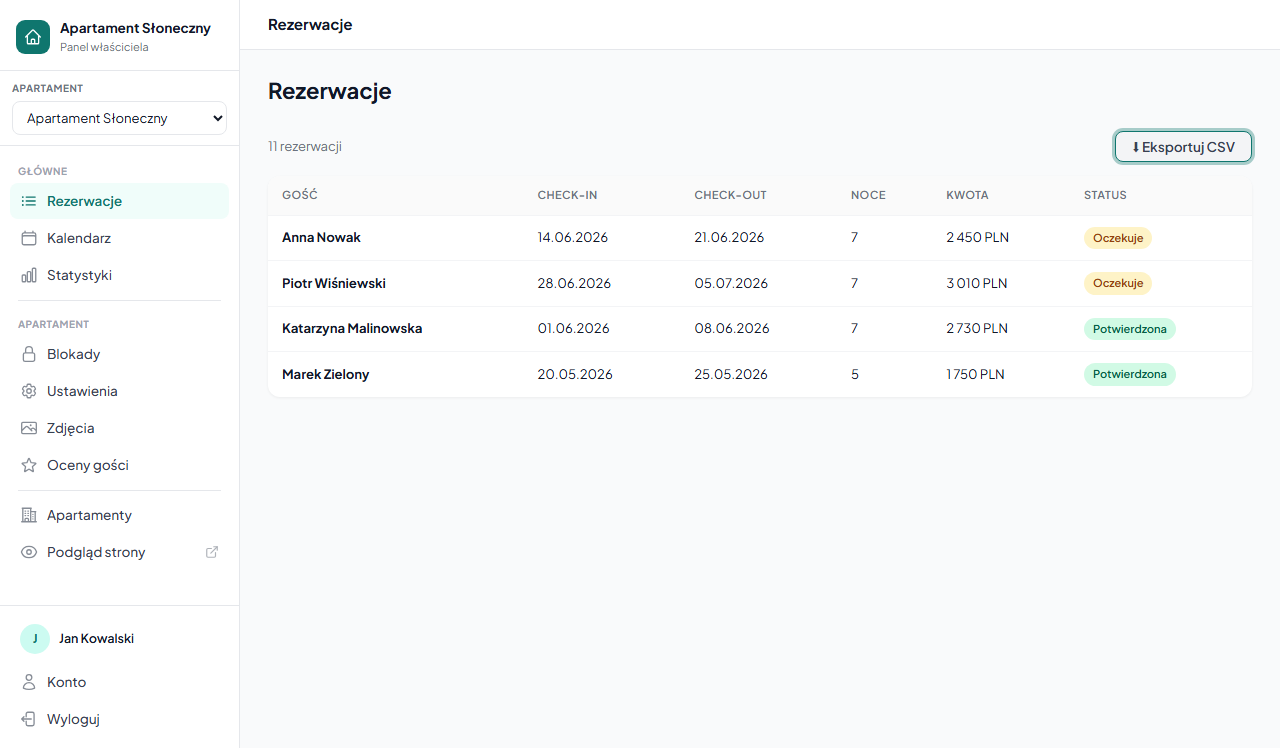
The file downloads automatically with a name in the format:
rezerwacje-main-2026-06-01.csvWhere main is the apartment slug and 2026-06-01 is the export date.
Filtered export
If you have active filters (status, dates, search), the button changes to "⬇ Export CSV (filtered)": the file contains only bookings matching the current filters.
Example: set Status = Confirmed + Check-in from 01.07 to 31.07 → the export contains only confirmed July bookings.
CSV file contents
| Column | Description |
|---|---|
| ID | The booking number in the system |
| Guest | Full name |
| The guest's email address | |
| Phone | Phone number (if provided) |
| Check-in | Arrival date (YYYY-MM-DD) |
| Check-out | Departure date (YYYY-MM-DD) |
| Guests | Number of people |
| Amount PLN | Total booking amount |
| Promo | Promo code used (if any) |
| Status | pending / confirmed / cancelled |
| Notes | The owner's private note |
| Submitted | Date and time the booking was submitted |
| Message | The guest's message from the form |
If you pick "All" in the apartment selector, the list and export cover bookings from every property, and the file gains an extra Apartment column.
Opening in Excel
The file is UTF-8 encoded with a ; (semicolon) separator. To open it correctly in Excel:
- Open Excel → Data → From Text/CSV.
- Select the downloaded file.
- In the import wizard set the separator: Semicolon, encoding: UTF-8.
- Click Load.
Alternatively: change the file extension from .csv to .txt and open via Data → From Text, the wizard launches automatically.
Uses
- Monthly settlements: export with a filter for a given month, sum the Amount PLN column.
- Reports for the accounting office: a full export with dates and amounts.
- Occupancy analysis: open in a spreadsheet, add a nights column and build a chart.
- Data backup: a regular export of the whole booking history.
Frequently asked questions
Why do Polish characters look wrong in Excel?
The file is saved in UTF-8 with a semicolon separator. Don't open it by double-clicking. In Excel go to Data → From Text/CSV, select the file and set the separator to Semicolon and the encoding to UTF-8. The characters and columns will then load correctly.
Does the export cover all apartments at once?
Only when you pick "All" in the apartment selector. The file then contains bookings from every property and gains an extra Apartment column. In a single-apartment view the export covers only that property's bookings.
How do I export only some of the bookings?
Set filters (status, dates, search) and the button changes to "⬇ Export CSV (filtered)": the file will include only bookings matching the current filters.
Related articles: Filtering and searching bookings · How the booking process works · Statistics: revenue and occupancy · Reservations API: access for your own tools