As the number of bookings grows, filters let you quickly find a specific request or browse selected groups of bookings: e.g. only pending ones, or all from a specific month.
The filter bar
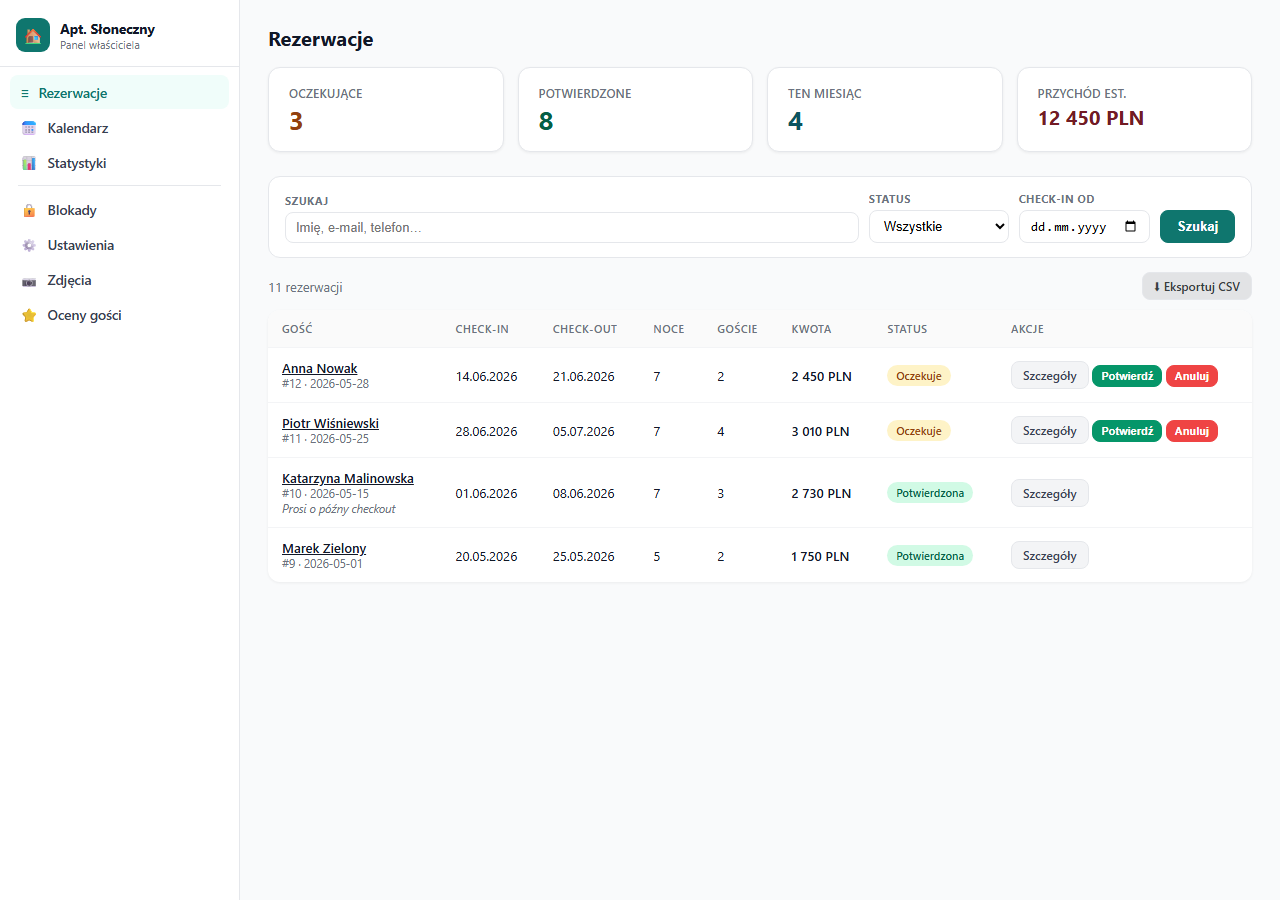
The filter bar above the booking table has four fields:
Search: text search by:
- Guest's full name
- Email address
- Phone number
Status: filter by booking status:
- All (default)
- Pending
- Confirmed
- Cancelled
Check-in from: show only bookings with a check-in date from this date (inclusive).
Check-in to: show only bookings with a check-in date up to this date (inclusive).
How to use filters
- Fill in any combination of fields.
- Click "Search".
- The table refreshes and shows only matching bookings.
- Above the table a note appears: "Found X of Y bookings".
Click "Clear" next to the Search button to remove all filters and return to the full list.
Usage examples
Find all pending bookings:
- Status: Pending → Search
Find bookings for July:
- Check-in from: 01.07.2026
- Check-in to: 31.07.2026 → Search
Check whether a specific person booked:
- Search: enter the first name, surname or email → Search
Show only confirmed bookings from next week onward:
- Status: Confirmed
- Check-in from: a date 7 days out → Search
Filters and CSV export
When filters are active, the export button shows "⬇ Export CSV (filtered)": the CSV file contains only the filtered bookings, not the whole list. Useful when you want to export, e.g., only bookings from a given month or only pending ones.
Apartment selector
If you have several apartments, at the top of the sidebar you can switch between properties or choose "All" to see bookings from all apartments at once in a single list. In "All" mode the table shows an extra column with the apartment name.
Frequently asked questions
What can I search by in the "Search" field?
The field searches the guest's full name, email address and phone number. Enter any fragment of one of these to check whether a specific person has booked with you.
How do I show only bookings from one month?
Set Check-in from to the first day of the month and Check-in to to the last, then click "Search". The table will show only bookings with a check-in date in that range.
Do filters affect the CSV export?
Yes. When any filter is active, the export button changes to "⬇ Export CSV (filtered)" and the CSV file contains only the bookings matching the filters, not the whole list.
Related articles: Export bookings to CSV · How the booking process works · Confirming and cancelling