An owner note is a private text attached to a specific booking. The guest doesn't see it — it serves only you, to remember arrangements, reminders and any additional information.
Where to add a note
Open the booking details (click the guest's name or "Details"), scroll to the right column → the "Owner note" section.
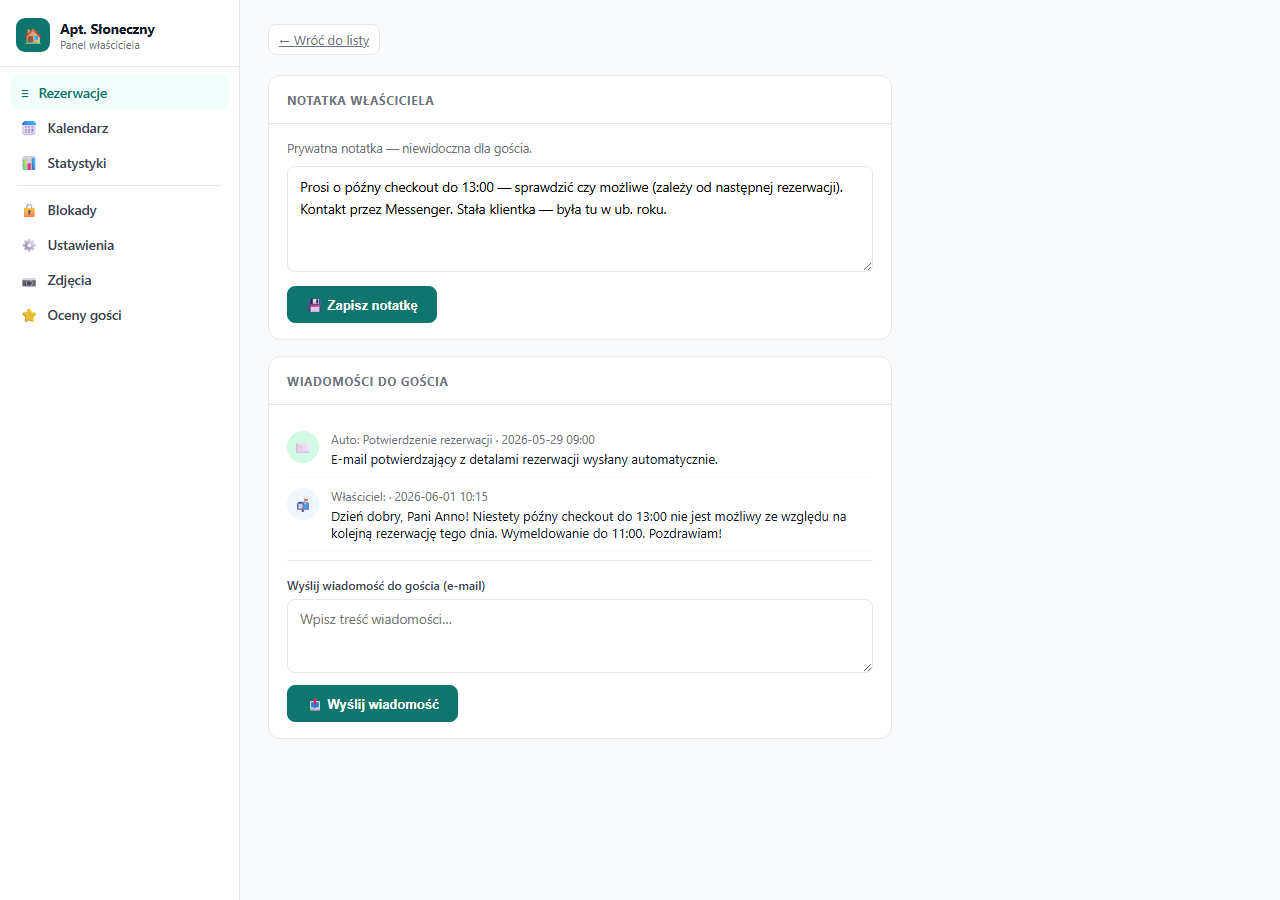
How to add or change a note
- Click the text field.
- Type or edit the note content.
- Click "💾 Save note".
The note saves immediately. You can change or delete it (clear the field and save) at any time.
What to use notes for
The note is visible in the booking list as gray italic text under the guest's name (truncated to 50 characters). This way you don't have to open the details of each booking to recall important arrangements.
Typical uses:
- "Asks for a late check-out until 13:00 — check if possible"
- "Regular customer, was here last year — prefers the upper bedroom"
- "Arriving by car — provide a garage spot"
- "5% discount promised by phone — settle at check-in"
- "Cleaning booked for 12:00 on check-out day"
- "Special occasion — ask staff for flowers"
What appears in the event history
Each save of a note is logged in the booking's event history with a date and a content snippet. This gives you a record of when and what was saved — useful in case of disputes.
Note vs. message to the guest
| Owner note | Message to the guest | |
|---|---|---|
| Visibility | Only you (panel) | The guest (email) |
| Purpose | Reminder, arrangements | Communication with the guest |
| Email sent | No | Yes |
| Editing | Any number of times | No (each message separately) |
Related articles: Message to the guest · How the booking process works · Filtering and searching bookings