Sometimes the dates or number of guests have to change — a guest asks to shift the stay or add a person. Editing a booking lets you update this data without cancelling and creating a new booking.
Where to edit
From the booking list — for each non-cancelled booking there's an "Edit" button (purple).
From the details page — in the action list in the right column or the page header.
The edit form
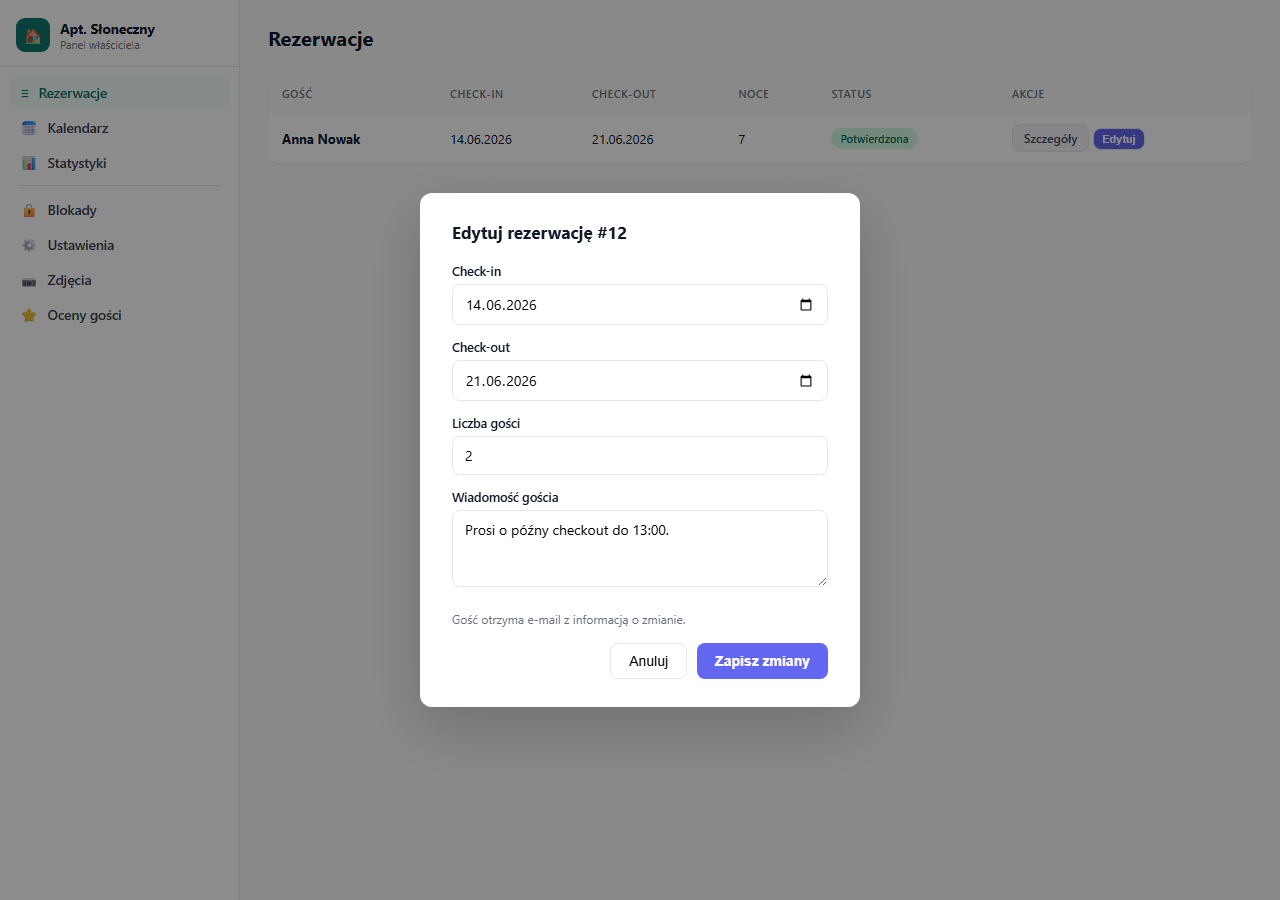
After clicking "Edit", a modal window opens with fields:
- Check-in — the new arrival date
- Check-out — the new departure date
- Number of guests — the updated number of people
- Guest message — you can also update the message content
Click "Save changes" — the system updates the booking and automatically sends the guest an email about the change.
What the guest gets after a change
The guest receives an email with the new schedule:
- Updated check-in and check-out dates
- Updated number of nights
- Any change in amount (if the dates or guest count changed)
Changing the dates doesn't automatically recalculate the amount in the database — the amount is saved as the value from the original booking submission. If you want to set a new amount, contact the guest separately and explain the difference.
When editing isn't possible
Editing is unavailable for bookings with the Cancelled status — instead, restore the booking to Pending or Confirmed, then edit.
Alternative — cancel and a new booking
If the change is large (a different apartment, very different dates), consider cancelling the existing booking and asking the guest to submit a new one through the booking page. That way the whole price calculation will be correct.
After editing, send the guest a message from the panel confirming the change.
Related articles: Confirming and cancelling bookings · Payments in a booking — payment history · Message to the guest · How the booking process works