The apartment's basic information is the first thing a guest sees on your booking page. Fill it in under Settings → Apartment.
Where to change it
Open the panel, click Settings in the left menu, and make sure the Apartment tab is active. You'll find two cards: General information and Apartment description.
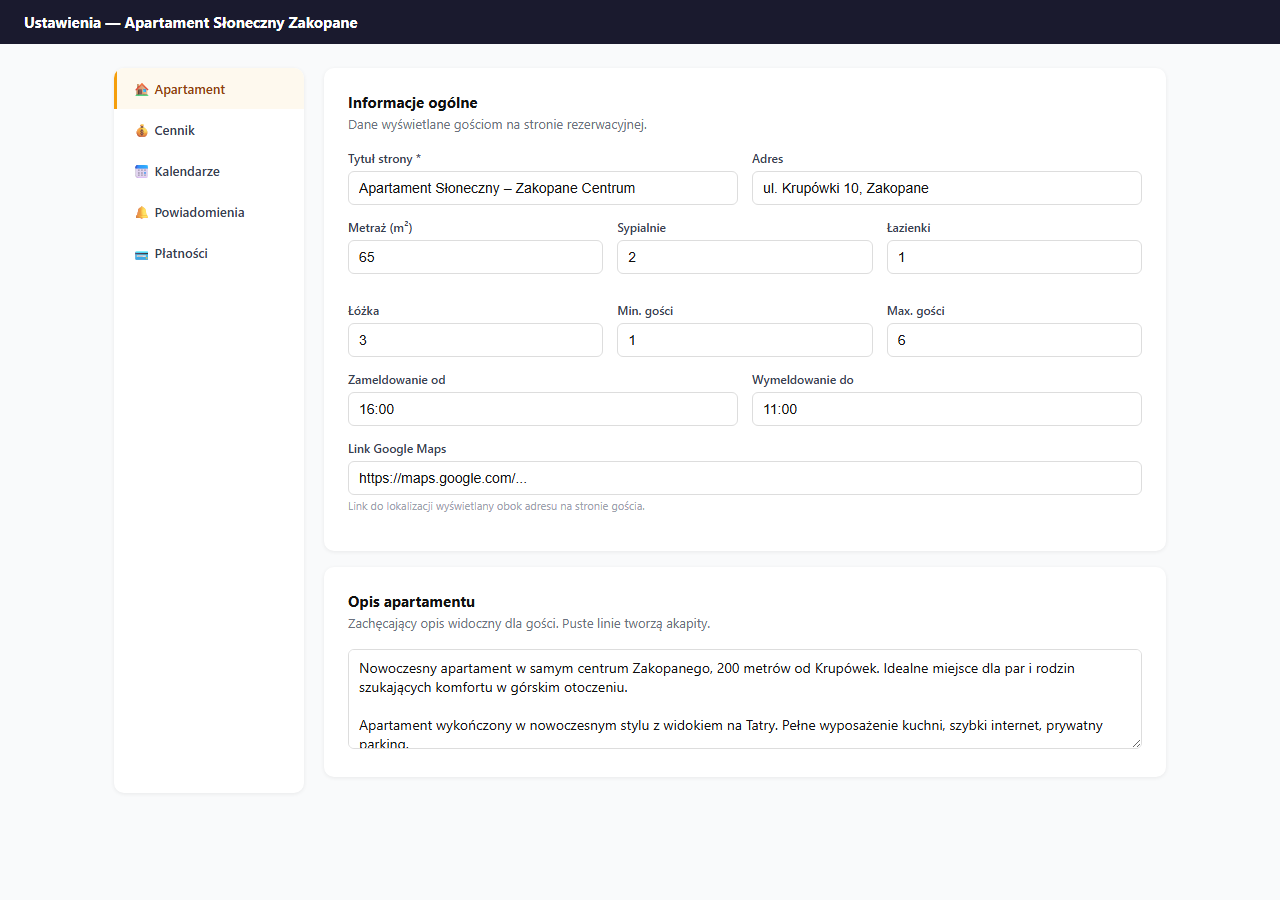
Page title
The title is the H1 heading on the guest page and the browser tab title. It should clearly identify the property and location.
Good examples:
- Sunny Apartment – Zakopane Center, 200 m from Krupówki
- Studio Morska – Gdańsk Old Town, by the Long Market
Avoid just "Apartment" with no specifics: guests often compare several pages at once.
Address and map
The address is shown under the title on the guest page. Start typing the street or city in the Address field: the system will launch autocomplete and show a list of suggestions. After you select an address from the list, the apartment's GPS coordinates are saved right away.
Autocomplete is powered by Google Places. If the address doesn't appear in the list, type it manually and save the settings. The system will try to work out the coordinates from the text you entered (see below). The text address itself is always shown to guests normally, whether or not a map appears.
Where the system gets coordinates from
The GPS coordinates decide whether a map appears on the guest page. When you save the apartment settings, the system determines them in this order:
- Selection from autocomplete: the most reliable source; the coordinates are saved right away when you pick an address from the list.
- Google Maps link: if you paste an address into the "Google Maps link" field, the system reads the coordinates from it. This also works with a shortened link (
maps.app.goo.gl/…), the kind the Maps app gives you after you tap "Share". - Manually typed address: when the above didn't work, the system tries to determine the coordinates from the address text itself.
If no source yields a result (e.g. the address is too vague), saving proceeds normally. Just without a map. You can then fix the address or paste a Google Maps link and save again.
Coordinates are filled in when you save the apartment settings. If your apartment was added long ago and has no map, go to Settings → Apartment and click "💾 Save apartment settings": the system will then try to fetch the coordinates.
Interactive map on the guest page
When the GPS coordinates are known, an interactive OpenStreetMap map appears automatically on the booking page, with a pin in your accent color. The map is shown in the location section, directly above the list of nearby attractions.
If you paste a link into the "Google Maps link" field, an "Open in Google Maps" button also appears next to the address. The map and the button can be active at the same time. The map shows the location right on the page, and the button opens it in the guest's Maps app.
Apartment description
The description is your main chance to convince a guest. Be specific: what makes the property stand out, what's nearby, who it's ideal for.
A few rules for an effective description:
- Start with the most important asset (location, view, equipment).
- Empty lines in the text field create new paragraphs on the guest page.
- Optimal length: 150–300 words. Shorter is too generic, longer doesn't get read.
- Avoid phrases like "comfortable", "cozy", "ideal": empty words that tell the guest nothing.
Apartment parameters
Numeric fields shown on the guest page as icon labels:
| Field | What the guest sees |
|---|---|
| Size (m²) | 🏠 65 m² |
| Bedrooms | 🛏 2 bedrooms |
| Bathrooms | 🚿 1 bathroom |
| Beds | 🛌 3 beds |
| Min./Max. guests | 👤 Up to 6 guests |
The guest page shows only the maximum number of guests (e.g. "Up to 6 guests"), and the guest count dropdown in the booking form starts at 1. The minimum value is not shown as a range. It works as a rule: if a guest selects fewer people than the set minimum, the form won't let them submit the booking.
Fill in all the fields: this information also appears in schema.org markup and helps Google recognize the page as accommodation.
Minimum and maximum number of guests
The "Min. guests" and "Max guests" fields define the allowed party size for a single booking:
- Max guests: the upper limit. The guest-count selector in the booking form stops at this value.
- Min. guests: the lower limit (default
1). Set it higher when you don't accept small groups, e.g.2if the apartment is too big for a single person, or when you only rent the whole place to larger groups.
If a guest tries to book for a number of people outside the range, the form rejects the request with the message "Number of guests: min–max". In the booking widget embedded on your own site, the selector starts directly at the minimum value.
"Min. guests" has no effect on price: it controls only who can book. If you want to vary the rate by the number of people, use the extra-guest surcharge (the Guests in the base price field is a separate setting under Pricing).
Check-in and check-out hours
The hours are shown on the guest page and in booking confirmation emails. Enter the hours in HH:MM format, e.g. 16:00 and 11:00.
Check-in and check-out hours do NOT block availability in the calendar: they are information for the guest only. You set date blocks separately in the Blocks section.
Guest phone: required or optional
In the General information section you'll find the Guest phone field with a "Required field" checkbox.
- Unchecked (default): the phone field in the booking form appears as optional. The guest can skip it.
- Checked: the guest must provide a phone number to submit a booking. The form blocks submission when the field is empty.
Check it if the phone is needed for arrival coordination, a key box or confirmation. Leave it unchecked if the number isn't needed: less friction in the form means more bookings.
Language versions of the title and description
If you host international guests, you can translate the title, description and other content into up to 10 languages (English, German, Czech and more) in the 🌐 Language versions sub-tab of the same Apartment section. The page automatically detects the guest's browser language and displays the appropriate version, and an empty field falls back to Polish. Details: Language versions of the booking page.
Profile-completion bar
Until the apartment profile is complete, a "Apartment profile completion" bar appears above the settings form, with an N/7 steps counter and a colored progress indicator (red → orange → green). It tracks the seven elements that most affect how well your page performs:
- Page title
- Address
- Apartment description (longer than a few words)
- Photos: at least one in the gallery
- Size
- iCal calendar: at least one connected OTA feed (synchronization)
- Notifications: connected Telegram
Each incomplete step is clickable and takes you straight to the right settings section. Once all seven are done (100%), the bar disappears.
The bar is a hint, not a publishing requirement. You can share your page with guests even with an incomplete profile. Complete data does, however, build guest trust and improves your visibility in Google.
Saving settings
At the bottom of the Apartment section click "💾 Save apartment settings": one button saves all changes from this tab at once.
Frequently asked questions
Why doesn't a map appear on the guest page?
A map needs GPS coordinates. Pick an address from the autocomplete list or paste a Google Maps link into the "Google Maps link" field and save. Coordinates are filled in on save. If the apartment was added long ago, open settings and click "Save apartment settings" to fetch them.
What is the "Min. guests" field for?
It sets the lower limit of the party size for a single booking. It has no effect on price. It only controls who can book. If a guest selects fewer people than the minimum, the form won't let them submit. To vary the rate, use the extra-guest surcharge.
Do check-in hours block availability in the calendar?
No. Check-in and check-out hours are information for the guest only (on the page and in emails). You block dates separately in the Blocks section.
Related articles: Photos and gallery · Amenities · House rules and terms · Extra-guest surcharge · Personalization · Check-in instructions · Language versions of the page · Minimum and maximum booking lead time