Changing your password and email is available in the Security section on the My account page. Both forms require your current password to confirm your identity.
How to open the Security section
Sign in to the panel, click My account in the menu and choose Security in the left sidebar.
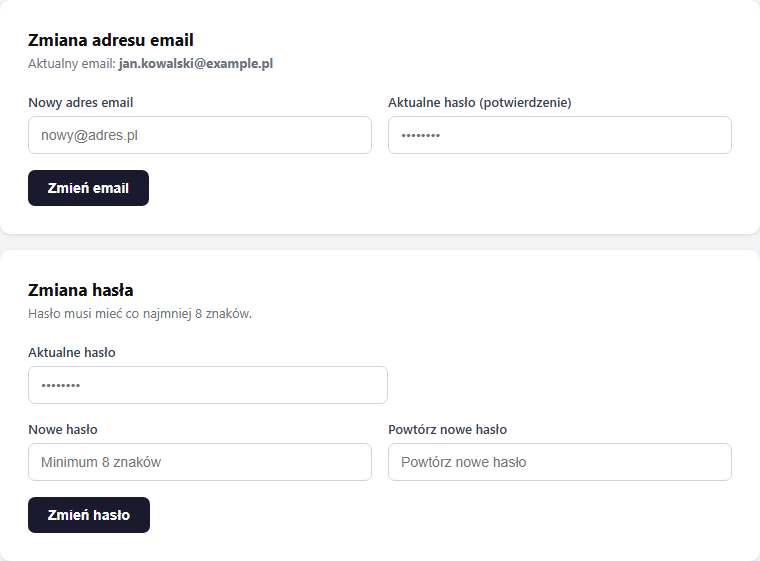
Changing your email
Your email is your login to the panel and the address for booking notifications.
- In the New email field, enter the new address.
- In the Current password (confirmation) field, enter your current password.
- Click "Change email".
- We'll send a confirmation link to the new address — click it within 1 hour to complete the change.
Until you click the link, the account keeps working on the old address. Only after confirmation does the new address become your panel login and notification address.
If the link expires, simply repeat the change — the system sends a new one. And if the address you entered is taken by another account, you'll see the error "This email is already used by another account."
Changing your password
The new password must be at least 8 characters long.
- In the Current password field, enter your current password.
- In the New password field, enter the new password.
- In the Repeat new password field, enter the new password again.
- Click "Change password".
If the New password and Repeat new password fields differ, the form shows the error "The new passwords don't match."
I forgot my password
If you don't remember your current password, use the "Forgot password" link on the login page (panel.erphome.pl). The system sends you an email with a one-time reset link — valid for 24 hours. The full step-by-step flow is covered in a separate article, Forgot your password? Reset your panel access.
This also applies to accounts that sign in only with Google — before you change your email or unlink Google, set a password via the reset.
Related articles: Forgot your password? Reset access · Company and profile details · Two-factor authentication (2FA) · Signing in and registering with Google · Panel users — team access