You can link your erphome.pl account with your Google account and sign in to the panel with one click — without typing a password. Linking works in three scenarios: registering a new account with Google, signing in to an existing account and linking accounts from the settings. Microsoft sign-in works the same way.
Registering with Google
On the erphome.pl/rejestracja page, click the "Register with Google" button above the form.
- Choose the Google account you want to use.
- Google redirects you back to erphome.pl — the email is already filled in.
- Fill in a short form: full name, optionally phone and tax ID, and accept the Terms and Privacy Policy.
- The account is ready — you go straight to the apartment setup.
Accounts created with Google don't require email confirmation — Google has already verified your address, so you skip that step and the panel lock screen.
Signing in with Google
On the login page panel.erphome.pl, click "Sign in with Google" and choose your account.
If the email of your Google account is the same as the address of your erphome.pl account, the accounts link automatically on the first such sign-in — from then on both login methods (password and Google) work in parallel.
Signing in with Google doesn't ask for your erphome.pl 2FA code — Google confirms your identity. If you want a second factor, enable two-step verification directly on your Google account.
Linking an account from the panel
If you already have an erphome.pl account and want to add Google sign-in:
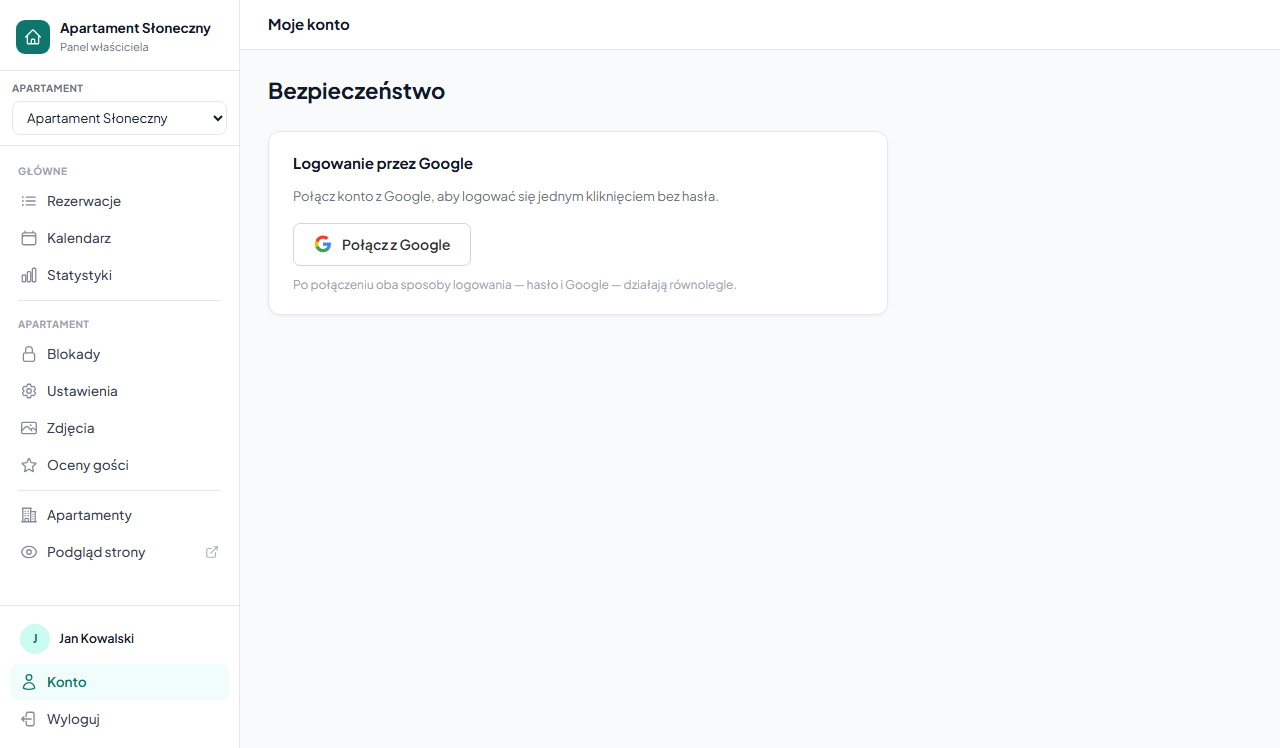
- Go to My account → Security and scroll to the Sign in with Google section.
- Click "Link with Google" and choose your Google account.
What happens next depends on the email of the chosen Google account:
- Address matching your erphome.pl account — linking happens right away; you'll see the message "Your Google account has been linked successfully."
- A different address — we send a confirmation email to your erphome.pl account address. Click the link within 1 hour to complete the link. Until then, the section shows a pending-confirmation note.
After linking, the section shows the status "Google account linked".
Unlinking your Google account
In the Sign in with Google section, expand "Unlink Google account", enter your current password and click "Unlink". After unlinking, login requires an email and password.
If you sign in only with Google and don't know your password, first set one via the "Forgot password" option on the login page — only then unlink Google. Otherwise you may lose access to your account.
Common problems
| Message | Cause and solution |
|---|---|
| "This Google account is already linked with another erphome.pl account." | One Google account can be linked with only one erphome.pl account. Unlink it from the other account first. |
| "The Google account email (…) is already registered as a separate erphome.pl account." | A separate erphome.pl account with this address exists. Sign in to it with a password or use a different Google account. |
| "The email is not verified in Google." | Confirm the address in your Google account settings and try again. |
| "The link has expired." | The linking confirmation email is valid for 1 hour. Go back to My account → Security and click "Link with Google" again. |
Related articles: Signing in and registering with Microsoft · How to create an account and complete onboarding · Changing your password and email · Forgot your password? Reset access · Two-factor authentication (2FA) · Changing company and profile details