Two-factor authentication (2FA) adds a second login factor — besides your password, you enter a 6-digit code from an app on your phone. Even if someone learns your password, they can't sign in without your phone.
Which apps to use
A TOTP code is generated by any Authenticator app:
- Google Authenticator — Android and iOS, free, no registration
- Authy — Android and iOS, cloud backup (works when you change phones)
- 1Password, Bitwarden — password managers with built-in TOTP
- Microsoft Authenticator — Android and iOS
How to enable 2FA
Go to My account → Security and scroll to the Two-factor authentication (2FA) section. Click "🔐 Enable 2FA".
Step 1 — Scan the QR code
The system generates a QR code. Open your Authenticator app, tap + (add account) and scan the code.
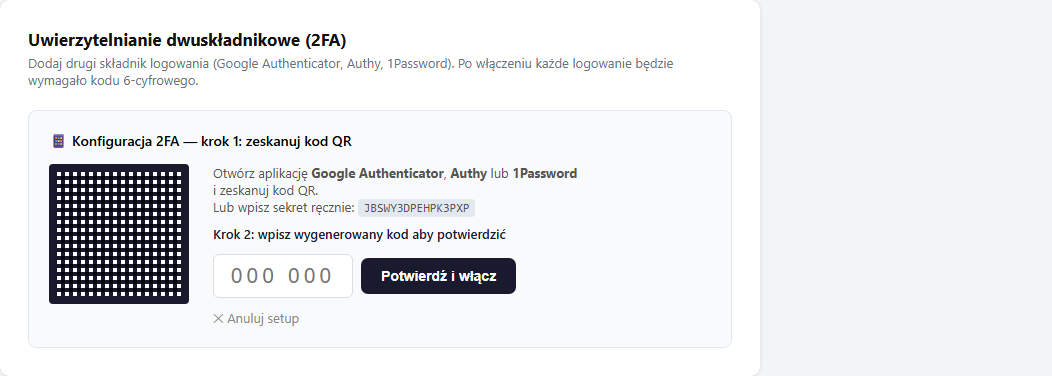
If you can't scan the QR, tap "Enter a setup key manually" in the app and copy the secret shown below the code (a string of uppercase letters and digits).
Step 2 — Confirm with a code
After scanning, the app shows a 6-digit code (changing every 30 seconds). Enter it in the "000 000" field and click "Confirm and enable".
If you see the error "Invalid code" despite entering the code correctly — check that the time on your phone is accurate. In the system settings, turn on "Automatic time" or "Sync time".
After confirmation you'll see the message "2FA has been enabled."
What login looks like after enabling 2FA
On the login screen — after entering your email and password — an extra field for the code appears. Enter the current 6-digit code from the app and click "Sign in →". The code is valid for 30 seconds.
The 2FA code applies to password login. Signing in with Google skips this field — Google confirms your identity then, so enable two-step verification on your Google account as well.
Changing devices
If you're changing phones, don't disable 2FA — you could lose access to your account.
Sign in from your current phone, go to My account → Security and click "📱 Change device (new QR)". The system generates a new QR code — scan it with the new phone and confirm with a code. The old QR code stops working immediately after the new one is confirmed.
Lost or stolen phone
erphome.pl doesn't use one-time backup codes — so plan your recovery ahead:
- An app with cloud backup (Authy, 1Password, Bitwarden) — after signing in on a new phone, the TOTP codes come back on their own. Google Authenticator also syncs with your Google account if you enable it.
- An account linked with Google — signing in with Google skips the 2FA code field, so you can sign in even without a phone with the app. Once signed in, go to My account → Security and set up 2FA again on the new device.
If neither path is available and you can't sign in — write to us from the email assigned to the account: [email protected].
How to disable 2FA
In the 2FA section, click "Disable 2FA" and confirm in the dialog. After disabling, login requires only a password.
Disabling 2FA lowers your account security — especially relevant if the account manages guest payments.
Related articles: Changing your password and email · Forgot your password? Reset access · Signing in and registering with Google · Panel users — team access