Przelewy24 is a payment gateway supporting BLIK, fast transfers, cards and Google Pay. To configure it you need an active Przelewy24 account and four values from their panel.
Required data from the P24 panel
Sign in to the Przelewy24 panel and go to My account → My data → Settings → API data and configuration.
| Field in erphome.pl | What it is |
|---|---|
| Merchant ID | The seller ID number, you'll also find it in the "Important information" email sent after registration; it's also your P24 panel login |
| POS ID | The point-of-sale number, with a single shop usually the same as the Merchant ID |
| API Key | The API key from the API data and configuration section, used to verify transactions and webhooks |
| CRC | The transaction-signing key, in the same section |
Before using the API key, you must enter the static IP address of the erphome.pl server in the "IP address" field in My account → My data → Settings → API data and configuration, then click "Save" at the bottom of the page.
Configuration in erphome.pl
Go to Settings → Payments in the owner panel and choose Przelewy24 as the gateway.
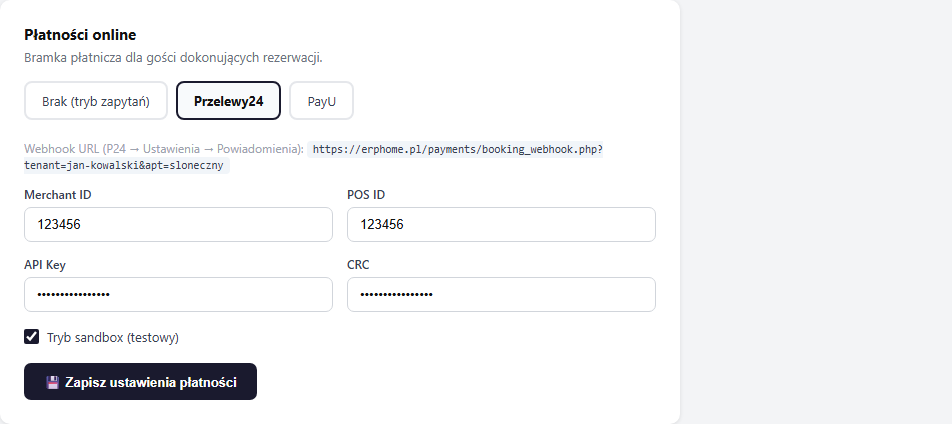
Fill in the Merchant ID, POS ID, API Key and CRC fields, then click "💾 Save payment settings".
Data verification on save
Before saving, erphome.pl connects to the Przelewy24 API and checks the provided credentials. If they're wrong, you'll see the message "Przelewy24: … Not saved, correct the data and try again." The settings won't be saved until the data is corrected. This way a typo in a key won't silently block guest payments.
Verification uses the environment matching the "Sandbox (test) mode" checkbox, with sandbox checked enter data from the sandbox panel, with it unchecked enter production data.
Sandbox (test) mode
Sandbox is the P24 test environment, transactions are simulated, no money is charged.
How to set up sandbox:
- Sign in to your account at panel.przelewy24.pl
- Go to the "My Data" tab
- Choose the "Sandbox account" option to create it
- The sandbox panel login details will arrive in a separate email
After receiving the email, sign in to the sandbox panel and get the data from it (Merchant ID, POS ID, API Key, CRC), they're different from production.
In erphome.pl, enter the data from the sandbox panel and tick the "Sandbox (test) mode" checkbox.
Sandbox has separate IDs, CRC and keys than production. Don't mix data between environments.
Switching from sandbox to production
When testing is done:
- In erphome.pl, uncheck the "Sandbox (test) mode" checkbox
- Change the data to production data (from panel.przelewy24.pl)
- Save the settings: that's all; you don't need to change notifications in the P24 panel (see below)
Webhook: nothing to set up
With Przelewy24 you don't manually configure the notification (IPN) address. erphome.pl passes that address to P24 with every single transaction, so the gateway calls the webhook automatically, regardless of the Points of sale → Notifications settings. The booking confirms itself once the payment clears, with no extra configuration on your side.
This is what sets Przelewy24 apart from PayU, where you enter the notification address manually in the gateway panel.
Verifying the configuration
After saving the settings, make a test booking on your page (in sandbox mode you can use any test card).
If the booking status changes to Confirmed, the configuration works.
If the booking stays with the Awaiting payment status, the most common cause is a wrong API Key or CRC, or a missing erphome.pl server IP address in the API data and configuration section. Correct the data in Settings → Payments and check the IP entry in the P24 panel.
Frequently asked questions
Why does the booking stay "Awaiting payment" after the guest paid?
With Przelewy24 you don't set the notification address manually, erphome.pl sends it with every transaction, so the webhook works automatically. If the status still doesn't change, check the API Key and CRC in Settings → Payments and make sure the erphome.pl server's IP address is listed in the API data and configuration section of the P24 panel (without it P24 rejects transaction verification).
Why does saving P24 data show an error and the settings don't save?
erphome.pl verifies the data against the Przelewy24 API before saving. A typo in the API key or CRC blocks the save with a "Not saved, correct the data" message. Also check that the sandbox checkbox matches the environment the entered data came from.
What's the difference between sandbox and production?
Sandbox is the P24 test environment, transactions are simulated, no money is charged. It has separate Merchant ID, POS ID, API Key and CRC. Don't mix data between environments; when going live, uncheck sandbox and enter production data. You don't touch the notification address, erphome.pl passes it to P24 automatically with every transaction.
Related articles: How online payments work · PayU configuration · Stripe configuration · How the booking process works · Payments in a booking