PayU integration is in preparation and will arrive in one of the upcoming erphome.pl updates. The documentation below describes the planned configuration. The currently available gateway is Przelewy24.
PayU is a payment gateway supporting BLIK, fast transfers, cards, Google Pay and Apple Pay. Configuration requires a PayU merchant account and four values from their panel, including OAuth data for authorizing transactions.
Required data from the PayU panel
Sign in at merch.payu.com (the PayU seller panel).
| Field in erphome.pl | Where to find it in the PayU panel |
|---|---|
| POS ID | Shops → Your shop → Online payments, the "Point of payment identifier (pos_id)" field |
| MD5 key (2nd) | Shops → Your shop → Online payments, the "Protocol signature (MD5)" section, Second key |
| OAuth client_id | Shops → Your shop → Online payments, the "OAuth protocol" section, "client_id" field |
| OAuth client_secret | Shops → Your shop → Online payments, the "OAuth protocol" section, "client_secret" field |
PayU has two MD5 keys. erphome.pl uses the second key (used to verify notifications). Don't confuse it with the first key (used to sign requests, erphome.pl doesn't need that one).
Configuration in erphome.pl
While the integration is in preparation, the PayU option in Settings → Payments is greyed out (marked "coming soon"), you cannot select it yet. The description below shows how the configuration will work once it launches.
Once PayU becomes available, you'll go to Settings → Payments and choose PayU as the gateway.
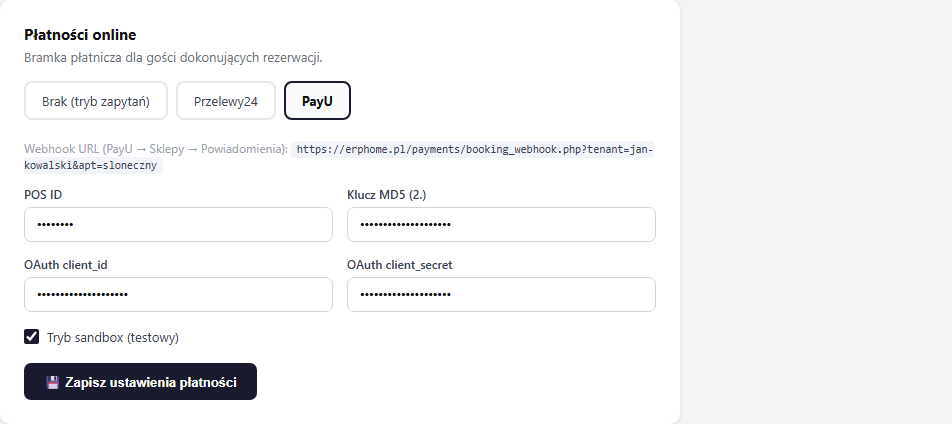
You'll fill in the four fields, uncheck "Sandbox (test) mode" for a production deployment, and click "💾 Save payment settings".
Webhook: configuration in the PayU panel
Where to set it in the PayU panel:
- Go to merch.payu.com
- Go to Shops → Your shop → Notifications
- Click Add notification or edit an existing one
- Enter the notification URL:
https://erphome.pl/payments/booking_webhook.php?tenant=YOUR_SLUG&apt=APARTMENT_SLUGThe exact URL (with your slug) is shown in erphome.pl under Settings → Payments after selecting PayU.
- Select the COMPLETED event (or all events)
- Save
As with P24, the webhook URL is different for each apartment. If you handle several apartments, each requires a separate notification, or a separate shop in PayU.
How PayU authorizes transactions (OAuth)
erphome.pl uses the OAuth protocol to create orders in PayU:
- For each payment, erphome.pl fetches a temporary access token using
client_idandclient_secret - The token is used to create a PayU order with the booking data
- The guest is redirected to the PayU payment page
- After payment, PayU sends a webhook: the signature is verified with the MD5 (2nd) key
If client_id or client_secret are wrong, the guest will see an error page instead of the payment form.
Sandbox (test) mode
The PayU sandbox is a separate environment with a separate account and data.
Test data:
- Register a sandbox account at secure.snd.payu.com
- Enter the OAuth data and POS ID from the sandbox account into erphome.pl
- Tick the "Sandbox (test) mode" checkbox
PayU test card (sandbox):
| Field | Value |
|---|---|
| Card number | 4444 3333 2222 1111 |
| Expiry | Any future date |
| CVV | 123 |
| Result | Success |
Before going to production: uncheck sandbox, change the data to production data and update the webhook URL in the PayU panel.
Verifying the configuration
Make a test booking in sandbox mode. If the status changes to Confirmed automatically after payment, the configuration is correct. If the booking stays Awaiting payment, check that the webhook URL is set correctly in the PayU panel.
Frequently asked questions
Can I enable PayU as a gateway yet?
Not yet. The integration is in preparation, in Settings → Payments the PayU option is greyed out and marked "coming soon". Until it launches, use Przelewy24.
Which of the two MD5 keys does erphome.pl use?
The second MD5 key: the one used to verify notifications. The first key (for signing requests) isn't needed; don't enter it in the configuration.
What happens if client_id or client_secret are wrong?
erphome.pl won't fetch the OAuth token and the guest will see an error page instead of the payment form. Check both fields in the PayU panel's "OAuth protocol" section and make sure they come from the right environment (sandbox or production).
Related articles: How online payments work · Przelewy24 configuration · Stripe configuration · How the booking process works · Payments in a booking