A manual block prevents guests from booking selected dates. Use it when you want to reserve the apartment for your own stay, a renovation, a deep clean or any other situation when the property is unavailable.
Where to do it
Blocks in the panel's left menu.
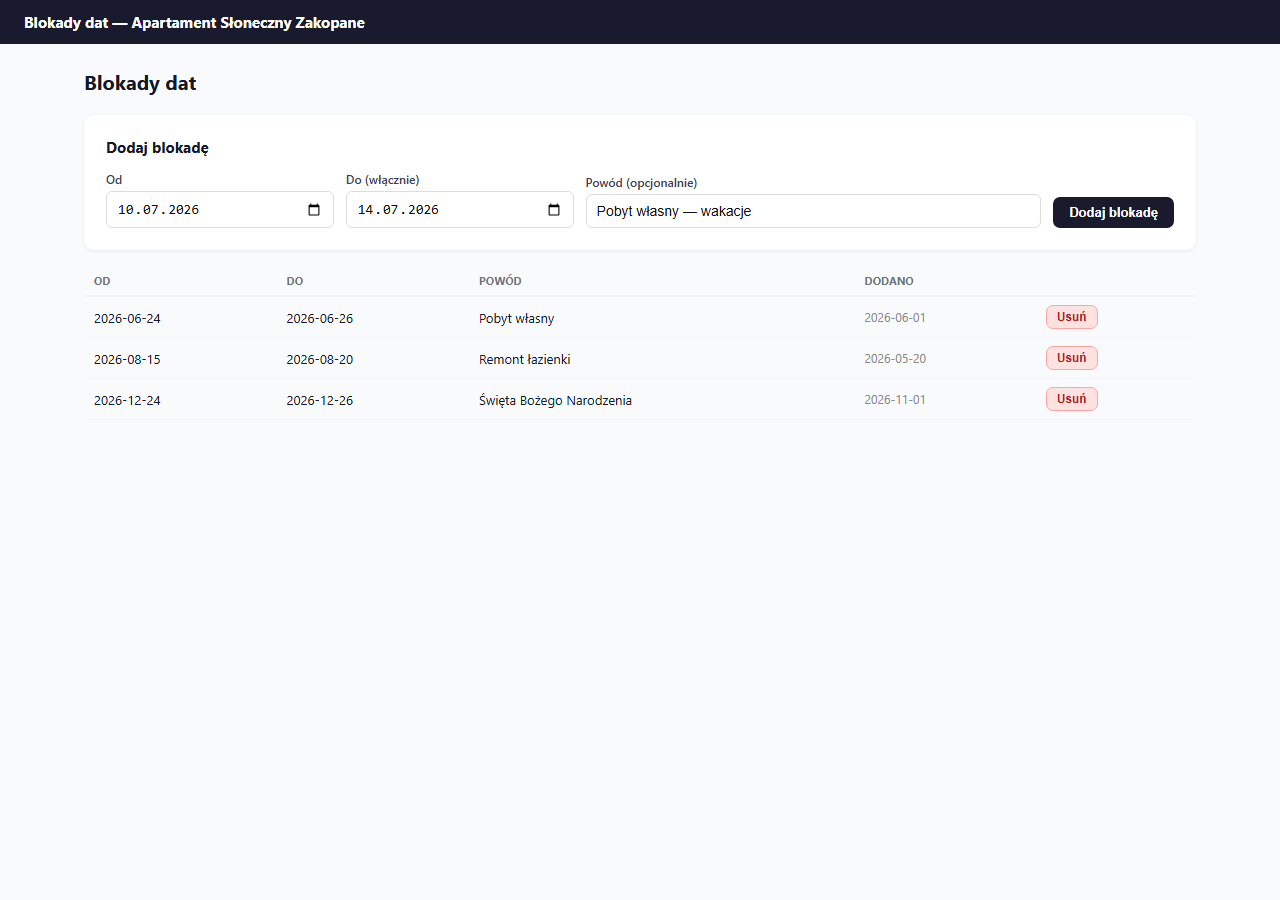
How to add a block
- In the From field, select the first blocked day.
- In the To (inclusive) field, select the last blocked day: this day is also blocked.
- Optionally: enter a Reason (visible only in the panel, not to guests). E.g. "Own stay", "Bathroom renovation", "Seasonal cleaning".
- Click "Add block".
A block must cover at least 2 days (the end date later than the start date). To block a single day, enter e.g. 24.06 → 25.06: the night from the 24th to the 25th will be blocked.
How a block affects availability
Blocked days are immediately unavailable in the booking form on the guest page. In the panel calendar they display as gray tiles with a red label and the given reason.
A block also syncs to the export iCal (your link to Booking.com / Airbnb). On the next sync the OTA will see these dates as occupied.
Removing a block
Click "Delete" next to the chosen block and confirm. The dates return to the available pool immediately. If you have iCal connected to an OTA, also update the calendar there manually.
Difference between a block and iCal
| Manual block | iCal from Booking.com | |
|---|---|---|
| Added by | The owner in the panel | Automatically from sync |
| Reason | Optional (panel only) | The iCal feed name |
| Removing | "Delete" button | After deleting the booking in the OTA + sync |
| Color in the calendar | Gray | Yellow |
When a block is NOT needed
You don't need to block dates manually when you have iCal from Booking.com or Airbnb connected: bookings from those platforms block dates automatically through sync.
Manual blocks are for situations the OTA doesn't cover: your own stay, renovation, a technical break. If you want a gap after each check-out to be blocked automatically, set a buffer between bookings.
Frequently asked questions
How do I block just a single day?
A block must cover at least 2 days, because you're blocking nights, not calendar days. To disable one night, enter e.g. From 24.06 and To (inclusive) 25.06: this blocks the night from the 24th to the 25th of June.
Does a manual block reach Booking.com and Airbnb?
Yes, if you share the iCal export link with those platforms. On the next sync the OTAs will see the blocked dates as occupied. After removing a block, also update the calendar on the OTA side.
Do I have to block dates manually when I have iCal from an OTA?
No. Bookings from Booking.com or Airbnb block dates automatically through sync. Keep manual blocks for situations the OTA doesn't cover: your own stay, a renovation, a technical break.
Related articles: How the availability calendar works · Gap between bookings · iCal export: link for Booking.com and Airbnb · How iCal synchronization works