The accent color and logo emoji are two elements that let you give your booking page an individual character — without writing any CSS.
Where to set it
Settings → Apartment → the "General information" card → the section at the bottom of the form.
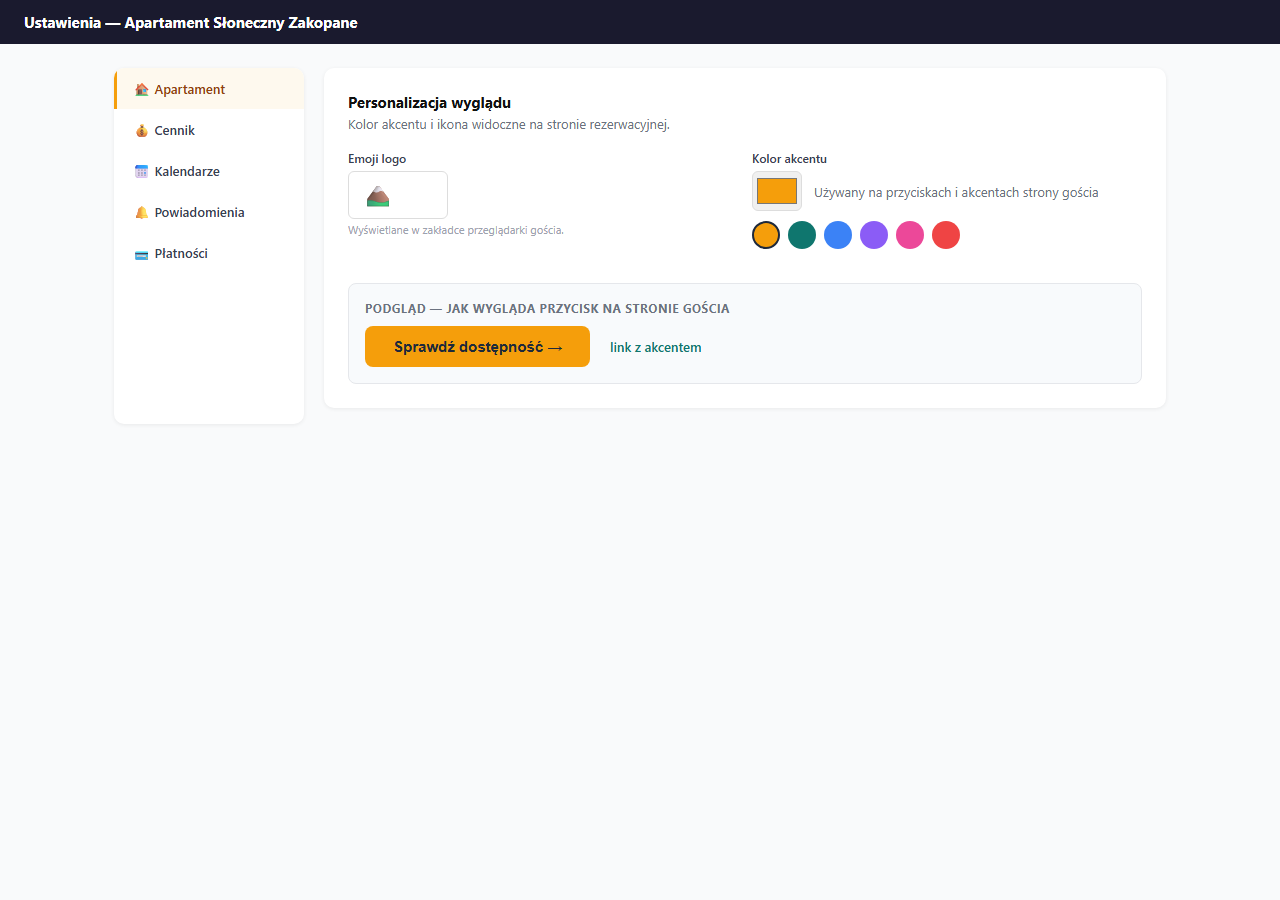
Accent color
The accent color is the hue used on:
- buttons — "Check availability", "Send request"
- link underlines and active form elements
- typographic accents — icons, stars, selected pricing elements
Click the color field to open the system color picker and choose any color. The change is visible right after you save the settings.
How to choose a good color
- Choose a color that contrasts with the white background — too-light colors are invisible.
- Match the color to the apartment's character: blue for seaside, green for mountain, warm yellows and browns for rustic.
- Avoid pure red (
#ff0000) — it's associated with errors, not buttons. - Check how the button looks in the page preview after saving.
Example colors
| Character | Color | Hex |
|---|---|---|
| Default (gold) | 🟡 | #f59e0b |
| Seaside | 🔵 | #0ea5e9 |
| Mountain | 🟢 | #0F766E |
| Urban | 🟣 | #8b5cf6 |
| Rustic | 🟤 | #92400e |
Logo emoji
The logo emoji is the icon shown in:
- the browser tab — when a guest has your page open
- the favicon on mobile devices when adding the page to the home screen
Enter any emoji in the text field, e.g.:
🏔️— for mountain apartments🌊— for seaside ones🏛️— for historic city centers🌿— for agritourism and nature🏠— neutral, default
The emoji must be at most 8 characters long (in practice one is enough). The special characters < > & " ' / are not allowed.
Saving
Click "💾 Save apartment settings" at the bottom of the Apartment section. The color and emoji changes are visible to guests immediately after saving.
Related articles: Basic information (title, description, address) · Photos and gallery · Language versions of the booking page · Booking widget on your own website