If connecting to Telegram ends with an error or notifications don't arrive, the steps below resolve 95% of cases.
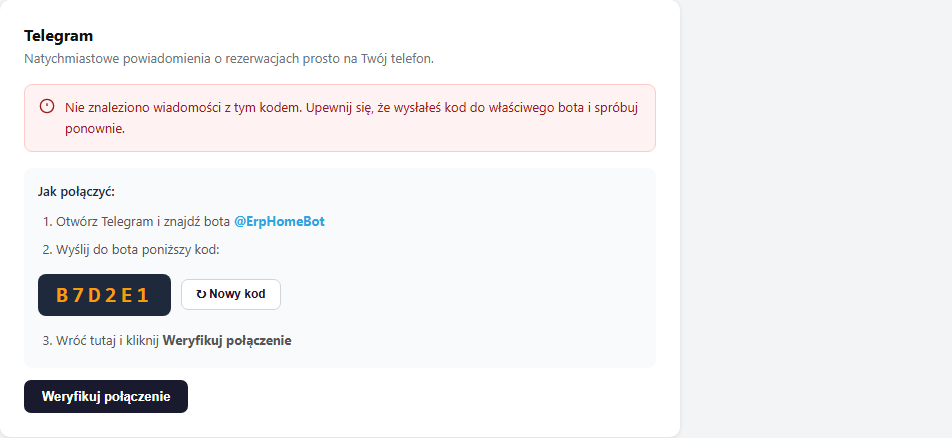
"No message found with this code"
This is the most common error. Causes:
1. The code was sent to the wrong bot or user
The code must reach the @ErpHomeBot bot — not another bot, not yourself in private messages. Open t.me/ErpHomeBot and check that you see a message history with this code.
2. The code expired or was used earlier
Each code works once. If the code was already used to connect (and Telegram was then disconnected), or too much time passed — generate a new one. Click "↻ New code" next to the displayed code in the panel.
3. A typo in the code
The code is case-sensitive — enter it exactly as it appears in the panel (uppercase, e.g. A3F9C2). Don't paste spaces before or after the code.
4. The bot isn't started — no Start button
On first contact with @ErpHomeBot you must click Start before sending the code. If you don't see the Start button, type /start manually.
Notifications stopped arriving after a while
Possible causes:
- Blocking the bot — if you ever clicked "Block" on @ErpHomeBot, the bot can't send you messages. Go to the bot's profile in Telegram, click Unblock and send
/start. - Option disabled in the panel — check that the "Enable Telegram notifications" checkbox is ticked in Settings → Notifications.
- Wrong apartment selected — each apartment has separate Telegram settings. If you have several apartments, make sure you're configuring the right one.
How to connect Telegram to a Telegram group
Notifications can be sent to a group chat (e.g. if you manage apartments with a partner). The process is the same:
- Add the @ErpHomeBot bot to the group as a member (required permission: sending messages).
- Send the connection code as a message in the group.
- Go back to the panel and click "Verify connection".
The bot will confirm the connection with a message in the group, and all new bookings will go there.
How to connect different apartments to different chats
Each apartment can be connected to a separate Telegram chat. Switch the active apartment in the top panel menu, then configure Telegram in Settings → Notifications separately for each.
Disconnect and reconnect
If nothing works, the simplest solution is to disconnect and connect anew:
- Click "Disconnect" in the Telegram section.
- Go back to the @ErpHomeBot bot and send
/start. - A new code will appear in the panel — send it to the bot and verify.
If the problem persists, write to [email protected] with your account slug and email address — we'll check the server-side logs.
Related articles: How to connect your account to Telegram · Email notifications · Google Calendar — automatically adding bookings