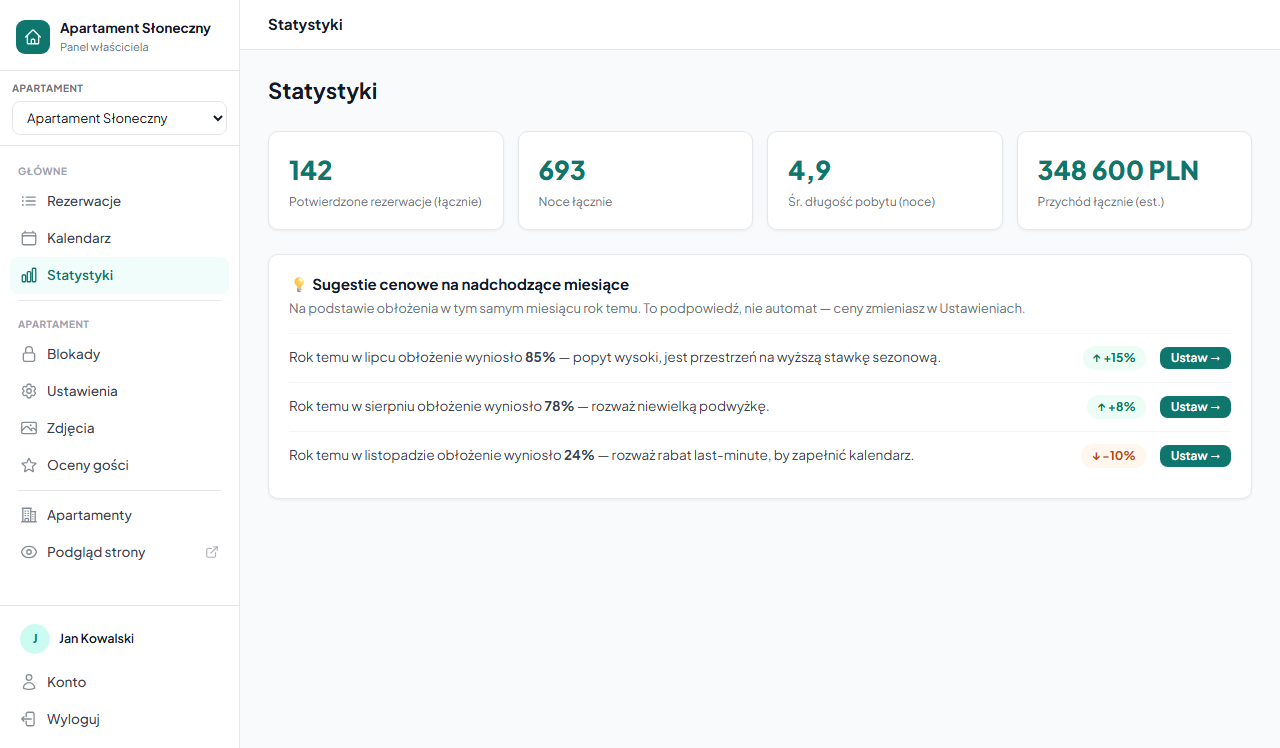
On the Statistics page, above the monthly table, a "💡 Price suggestions for the coming months" box may appear. These are hints calculated from your historical data — the system compares upcoming months with occupancy in the same month a year earlier.
A suggestion is a hint, not an automation. The system changes nothing on its own — you set prices manually in the apartment Settings.
How suggestions work
The system looks at the 3 upcoming months. For each, it checks the occupancy in the same month a year ago and suggests accordingly:
| Occupancy a year ago | Suggestion |
|---|---|
| 80% and above | ↑ Consider raising the price by about +15% (seasonal pricing) |
| 60–79% | ↑ Consider raising the price by about +8% |
| 31–59% | No suggestion — occupancy is normal |
| 30% and below | ↓ Consider a promotion or last-minute discount of about −10% to fill the calendar |
Example: it's April, and last July occupancy was 85%. Next to the Jul row you'll see a suggestion to raise the price by about +15% — demand for July was high, so there's room for a higher rate.
The "Set →" button next to each suggestion leads straight to the apartment settings, where you change seasonal prices or enable a last-minute discount.
When suggestions don't appear
The box is visible only when the system has something to work with. You won't see suggestions when:
- The apartment has been running for less than a year — no data from the comparable month a year ago
- There were no bookings in the reference month — a month with no bookings is skipped, because zero occupancy a year ago (e.g. before you started renting) isn't a signal for a promotion
- Occupancy a year ago was within the 31–59% range — that's a normal level; the system has no reason to suggest anything
How to implement a suggestion
An increase suggestion — add a date range with a higher price in the seasonal pricing. The increase applies only to the indicated month; the base price stays unchanged.
A promotion suggestion — you have a few options:
- Last-minute discount — an automatic reduction for bookings close to the arrival date
- Promo code — a discount for guests you send a code to (e.g. returning ones)
- A lowered seasonal price for that month in the seasonal pricing
Where the system gets occupancy data
Occupancy is calculated the same way as in the monthly statistics table: nights from confirmed bookings divided by the number of days in the month. OTA bookings synced via iCal block the calendar but don't create bookings in the system — if you take most bookings on Booking.com or Airbnb, also add them as manual bookings so the statistics and suggestions reflect actual occupancy.
Related articles: Statistics — revenue and occupancy · Seasonal prices · Last-minute discount · Promo codes