PayU integration is in preparation and will arrive in one of the upcoming erphome.pl updates. The documentation below describes the planned configuration. The currently available gateway is Przelewy24.
PayU is a payment gateway supporting BLIK, fast transfers, cards, Google Pay and Apple Pay. Configuration requires a PayU merchant account and four values from their panel — including OAuth data for authorizing transactions.
Required data from the PayU panel
Sign in at merch.payu.com (the PayU seller panel).
| Field in erphome.pl | Where to find it in the PayU panel |
|---|---|
| POS ID | Shops → Your shop → Online payments — the "Point of payment identifier (pos_id)" field |
| MD5 key (2nd) | Shops → Your shop → Online payments — the "Protocol signature (MD5)" section, Second key |
| OAuth client_id | Shops → Your shop → Online payments — the "OAuth protocol" section, "client_id" field |
| OAuth client_secret | Shops → Your shop → Online payments — the "OAuth protocol" section, "client_secret" field |
PayU has two MD5 keys. erphome.pl uses the second key (used to verify notifications). Don't confuse it with the first key (used to sign requests — erphome.pl doesn't need that one).
Configuration in erphome.pl
While the integration is in preparation, the PayU option in Settings → Payments is greyed out (marked "coming soon") — you cannot select it yet. The description below shows how the configuration will work once it launches.
Once PayU becomes available, you'll go to Settings → Payments and choose PayU as the gateway.
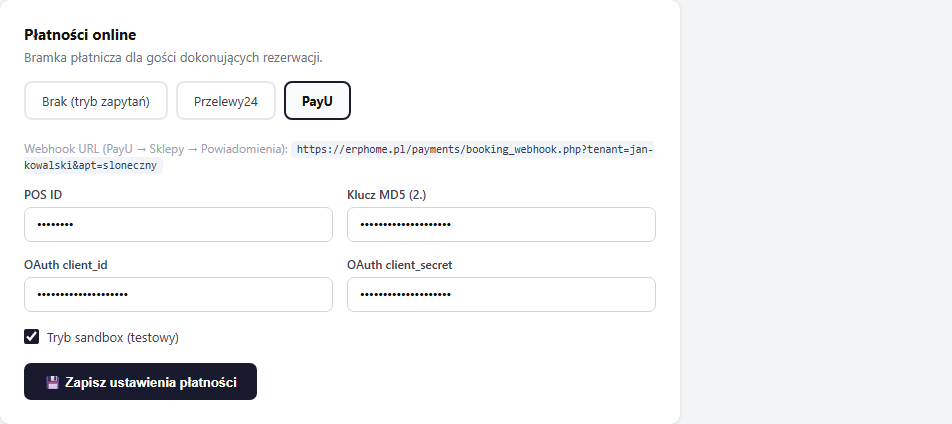
You'll fill in the four fields, uncheck "Sandbox (test) mode" for a production deployment, and click "💾 Save payment settings".
Webhook — configuration in the PayU panel
Where to set it in the PayU panel:
- Go to merch.payu.com
- Go to Shops → Your shop → Notifications
- Click Add notification or edit an existing one
- Enter the notification URL:
https://erphome.pl/payments/booking_webhook.php?tenant=YOUR_SLUG&apt=APARTMENT_SLUGThe exact URL (with your slug) is shown in erphome.pl under Settings → Payments after selecting PayU.
- Select the COMPLETED event (or all events)
- Save
As with P24, the webhook URL is different for each apartment. If you handle several apartments, each requires a separate notification — or a separate shop in PayU.
How PayU authorizes transactions (OAuth)
erphome.pl uses the OAuth protocol to create orders in PayU:
- For each payment, erphome.pl fetches a temporary access token using
client_idandclient_secret - The token is used to create a PayU order with the booking data
- The guest is redirected to the PayU payment page
- After payment, PayU sends a webhook — the signature is verified with the MD5 (2nd) key
If client_id or client_secret are wrong, the guest will see an error page instead of the payment form.
Sandbox (test) mode
The PayU sandbox is a separate environment with a separate account and data.
Test data:
- Register a sandbox account at secure.snd.payu.com
- Enter the OAuth data and POS ID from the sandbox account into erphome.pl
- Tick the "Sandbox (test) mode" checkbox
PayU test card (sandbox):
| Field | Value |
|---|---|
| Card number | 4444 3333 2222 1111 |
| Expiry | Any future date |
| CVV | 123 |
| Result | Success |
Before going to production: uncheck sandbox, change the data to production data and update the webhook URL in the PayU panel.
Verifying the configuration
Make a test booking in sandbox mode. If the status changes to Confirmed automatically after payment — the configuration is correct. If the booking stays Awaiting payment — check that the webhook URL is set correctly in the PayU panel.
Related articles: How online payments work · Przelewy24 configuration · How the booking process works · Payments in a booking