The Google Calendar integration adds every new booking directly to your Google Calendar as an event. Instead of checking the panel — you see everything where you keep the rest of your calendar: phone, tablet, computer.
Where to enable it
Settings → Notifications → the Google Calendar section (below the Telegram section).
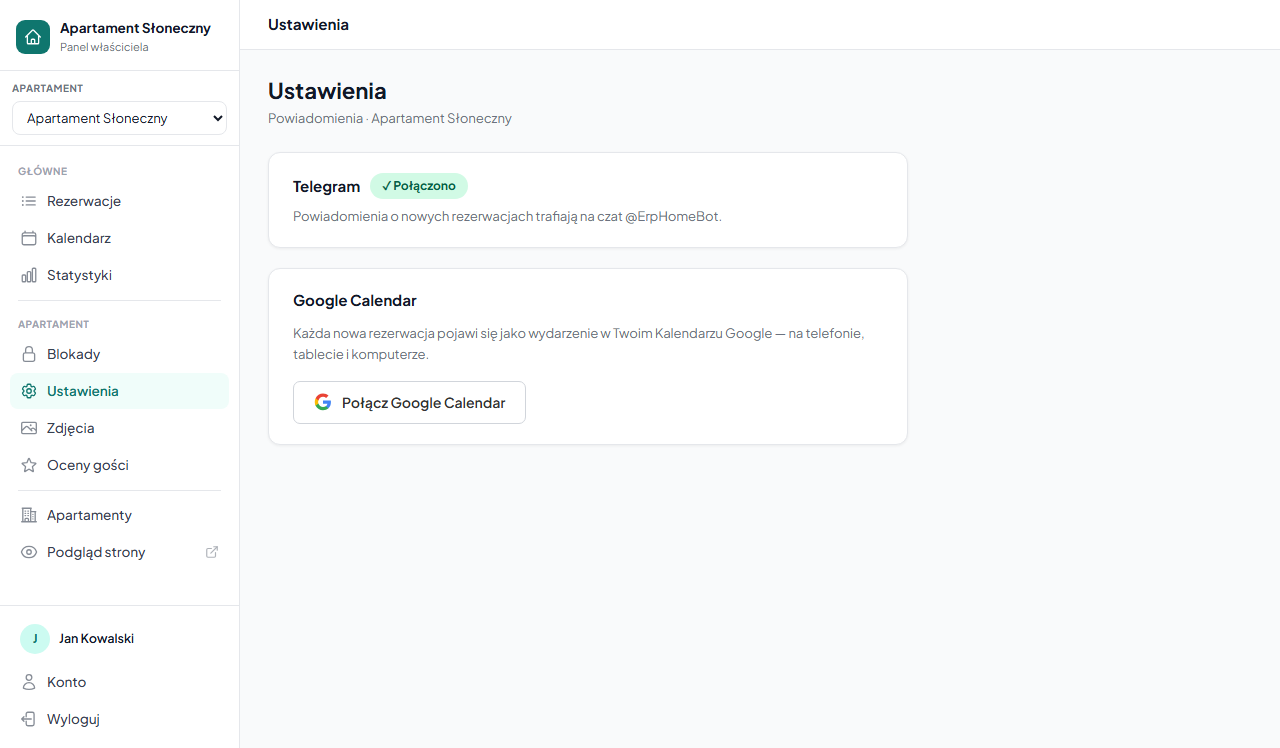
The section appears only when the platform administrator has the Google OAuth integration configured. If you don't see it — contact support.
How to connect, step by step
Step 1 — Click "Connect Google Calendar"
In the Google Calendar section, click the button with the Google logo — "Connect Google Calendar".
You'll be redirected to the Google sign-in page. Choose the Google account you want to use.
Step 2 — Grant permissions
Google will ask for consent to access the Calendar. erphome.pl needs one permission:
"Manage events in your Google Calendar" — allows creating, editing and deleting events.
Click "Allow" and wait for the redirect back to the panel.
Step 3 — Connection verification
After a successful connection, the Google Calendar section changes to:
✓ Connected
Primary calendar (primary)
[Disconnect Google Calendar]
From now on, new bookings will automatically appear in Google Calendar.
What the events look like in the calendar
Each booking creates a separate all-day event for the guest's stay dates.
Event title: Booking: [guest's full name]
Description: contains contact details and specifics:
Guests: 3
Phone: +48 600 000 111
Email: [email protected]
Amount: 2,150.00 PLN
Apartment: Sunny Apartment Zakopane
Event color:
- 🟡 Yellow — booking awaiting confirmation
- 🟢 Green — booking confirmed
Pending requests go to the calendar as soon as they're submitted — before you click "Confirm" in the panel. So you can check the date in the calendar and decide.
What happens on cancellation
When you cancel a booking in the panel (the "Cancel" or "Reject" button), the corresponding event is automatically removed from Google Calendar. You don't have to do anything manually.
Show occupancy from Booking.com and Airbnb too
By default, only direct bookings from erphome.pl go to Google Calendar. If you sync OTA calendars via iCal, you can also add the occupied dates from those channels to the calendar — you'll have your full occupancy in one view.
After connecting Google Calendar, the "Show bookings from Booking.com / Airbnb too" option appears. Tick it to:
- have occupied dates from connected iCal feeds go to Google as separate events in graphite color, labeled "🔒 Occupied";
- since OTA channels usually don't share guest details, such an event shows only the occupied dates and the source name (e.g. Booking.com), with no name or contact.
The change saves immediately when you click. Imported dates appear after the next iCal sync — within an hour. After unchecking the option, those events are removed from the calendar (your direct bookings remain).
This option is independent of direct bookings — you can have just erphome.pl bookings in the calendar, or your full occupancy from all platforms.
Settings are per apartment
If you have several apartments, you connect each to Google Calendar separately. You can use the same Google account for all apartments — bookings from each will go to the same primary calendar.
Switch the active apartment with the selector at the top of the panel and repeat the connection for each property.
How to disconnect
Click "Disconnect Google Calendar" and confirm in the dialog. New bookings stop going to the calendar. Previously added events remain in the calendar — you must delete them manually if you want to remove them.
Difference between Google Calendar and iCal export
| Google Calendar integration | iCal export | |
|---|---|---|
| How it works | Directly via the Google API (OAuth) | An iCal link subscribed to by any app |
| What syncs | Direct bookings from erphome.pl | Occupied dates (blocks + bookings) |
| Guest details in the calendar | Yes — name, phone, email, amount | No — just the date block |
| Required setup | Clicking the OAuth button | Pasting the link into a calendar app |
| Direction | erphome.pl → Google Calendar | erphome.pl → any iCal app |
| Auto-removal on cancellation | Yes | No (iCal refreshes periodically) |
You can have both features active at once — Google Calendar as a rich view with guest details, iCal for compatibility with Booking.com and Airbnb.
Related articles: Email notifications · How to connect your account to Telegram · iCal export — link for other platforms · How iCal synchronization works · How the availability calendar works