Connecting Booking.com via iCal requires two steps: import (Booking.com → erphome.pl) and export (erphome.pl → Booking.com). Both directions together give full two-way synchronization.
Step 1 — Import: copy the iCal link from Booking.com
Sign in to the Booking.com panel (extranet.booking.com) and follow the path:
Calendar → Settings → Sync with external calendars
Or, more briefly: in the main menu find Calendars → select the property → Export calendar.
Booking.com will show a link in the format:
https://ical.booking.com/v1/export?t=YOUR_TOKEN&type=icalCopy the entire link.
The exact path may differ depending on the version of the Booking.com panel. Look for the phrase "iCal", "Export calendar" or "Sync with external systems".
Step 2 — Paste the iCal link into erphome.pl
Go to: Settings → Calendars in the erphome.pl panel.
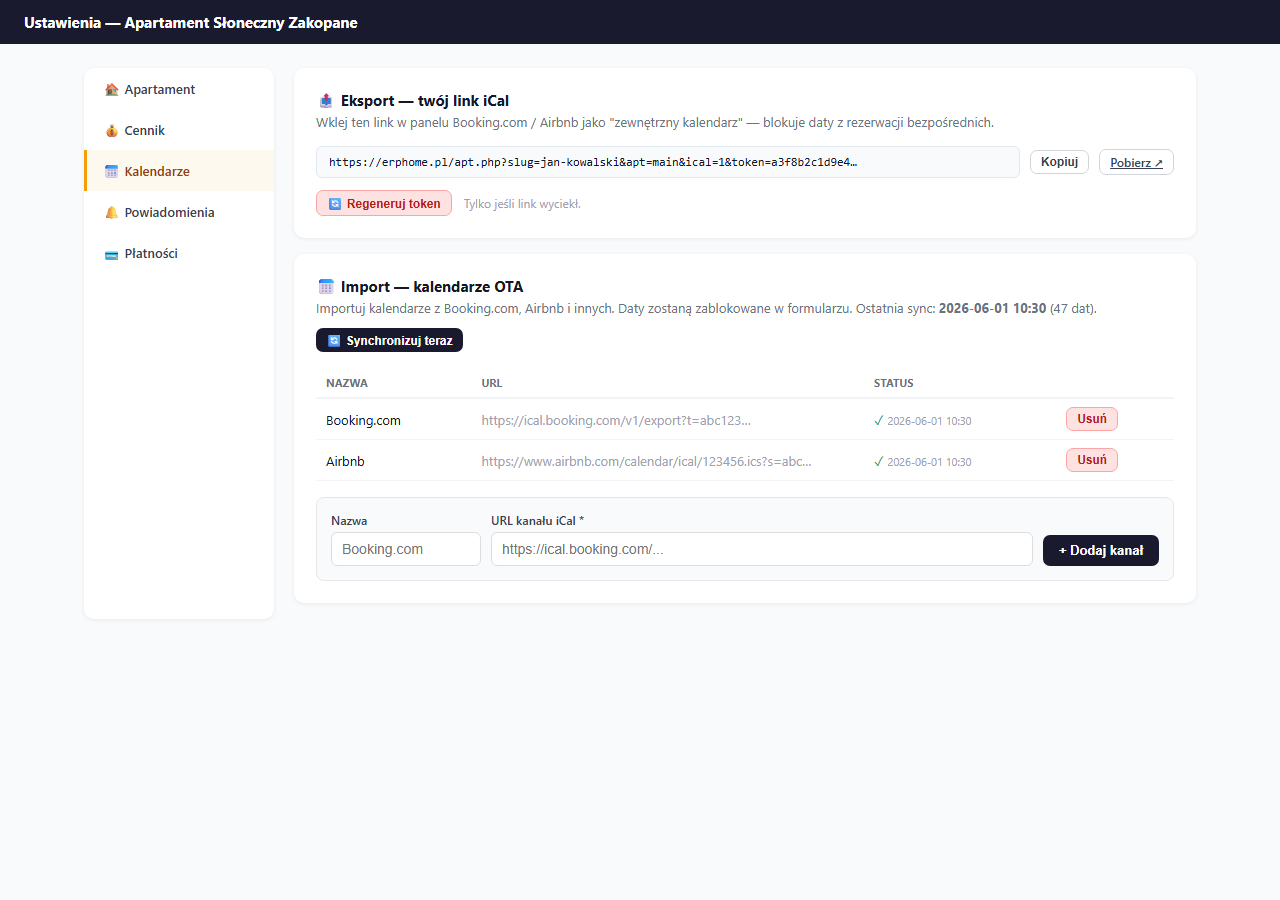
In the "📅 Import — OTA calendars" section:
- In the Name field, type
Booking.com. - In the iCal feed URL field, paste the link copied from Booking.com.
- Click "+ Add feed".
After adding it, click "🔄 Sync now" — erphome.pl will immediately fetch the occupied dates from Booking.com and block them in the booking form.
Step 3 — Export: paste the erphome.pl link into Booking.com
In the "📤 Export — your iCal link" section, click "Copy" next to your unique erphome.pl link.
Go back to the Booking.com panel and paste this link as an external iCal calendar:
Calendar → Settings → Import from external calendars → Add calendar URL
Enter a name (e.g. "erphome.pl — direct bookings") and paste the link. Booking.com will fetch this file every few hours and block the dates in its calendar.
Verification
After configuring both directions:
- Make a test direct booking through your erphome.pl page.
- Wait up to 6 hours (or manually refresh the calendar in Booking.com).
- Check that the date is blocked in the Booking.com panel.
Conversely — make a test booking in Booking.com and, after a manual sync in erphome.pl, check that the date is blocked on your page.
Common problems
The iCal link from Booking.com doesn't work — check that the link is public (doesn't require a login) and starts with https://ical.booking.com/. Some accounts have different formats — contact Booking.com support.
Dates aren't blocked after adding — click "Sync now" in the erphome.pl panel. Automatic sync runs every hour; the first one may not happen immediately.
Booking.com doesn't see your direct bookings — make sure the link pasted in the Booking.com panel is correct. Booking.com refreshes external calendars every 1–6 hours.
Related articles: How iCal synchronization works · iCal from Airbnb · iCal export — link for Booking.com · Sync frequency · How the availability calendar works