Seasonal prices let you set a different nightly rate for any date range. They have the highest priority in the system — they override the base price and day prices.
Where to set it
Settings → Pricing → the "Seasonal prices" card.
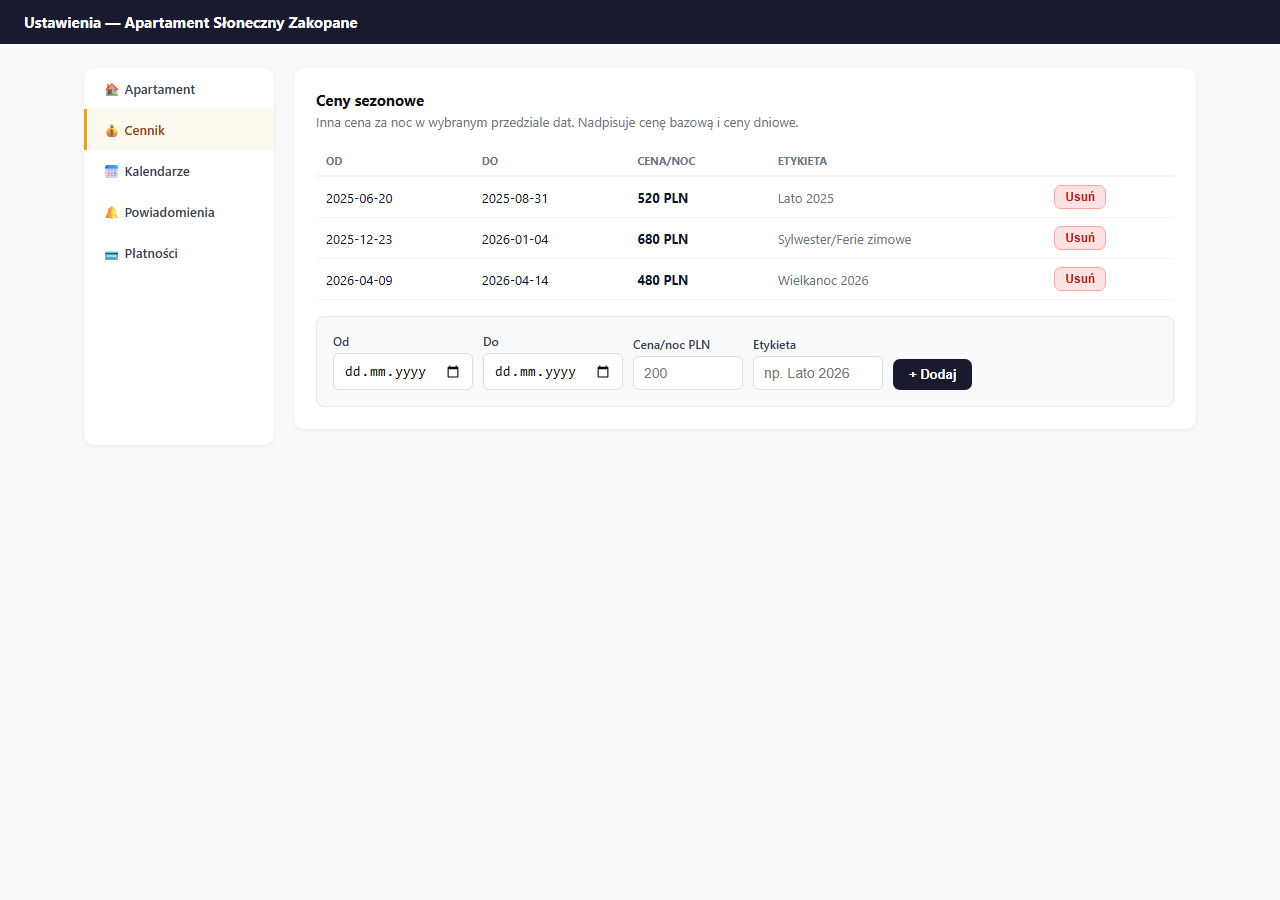
How to add a seasonal price
- Select the From and To dates (inclusive — the price applies on both boundary days).
- Enter the Price/night PLN — it can be higher or lower than the base.
- Enter a Label (optional) — a description visible only in the panel, e.g. "Summer 2026".
- Click "+ Add".
Example year-round configuration
| Period | Dates | Price/night | Label |
|---|---|---|---|
| Summer | 20.06–31.08 | 520 PLN | Summer 2026 |
| Winter break | 10.01–23.02 | 480 PLN | Winter break 2026 |
| New Year's | 28.12–04.01 | 680 PLN | New Year's |
| Easter | 09.04–14.04 | 480 PLN | Easter 2026 |
| May long weekend | 01.05–04.05 | 460 PLN | May weekend 2026 |
Periods can overlap — when two rules cover the same date, the system applies the one with the earlier start date.
What the guest sees
On the booking page, the price displays dynamically after dates are selected — the guest immediately sees the correct price for the chosen period (including seasonal and day prices). The label is not visible to guests.
Removing a rule
Click "Delete" next to the chosen rule and confirm. The removal is immediate — the dates return to the base/day price.
When to use seasonal prices instead of day prices
- Seasonal prices — for specific, known dates (holidays, festivities, school breaks).
- Day prices — for a fixed weekly pattern (higher Friday and Saturday all year).
Both rules can run at the same time — a seasonal price always beats a day price.
In high-demand seasons, also set a minimum stay to avoid 1–2 night bookings at peak times.
Related articles: Base price and day-of-week prices · Extra-guest surcharge · Long-stay discount · Minimum stay · Price suggestions based on occupancy